
Quickstart
LensBench has four entry points, all backed by the same command table and the same .lens text:
| Entry point | Good for | How to start |
|---|---|---|
| Desktop app | Editing designs, checking plots against numbers, optimizing, review and sign-off | LensBench in the Start menu, or double-click a .lens file |
| Command line | Scripts, batch jobs, version control | lb <command> (lb.exe in the install directory) |
| MCP | Let your own AI client operate for you | One-click config writing from the desktop app's "AI" panel; afterwards the AI client starts it |
| Python | Compute your own quantities with a script (like MATLAB), usually written by the AI | Put scripts in scripts/ next to the design and see the results under "脚本和产物" (Scripts and artifacts) below the desktop app's browser (see Using LensBench from Python) |
First install the desktop app following Install (the command line and MCP are in the same installer). If you'd rather not install, you can try the web version first.
Desktop app
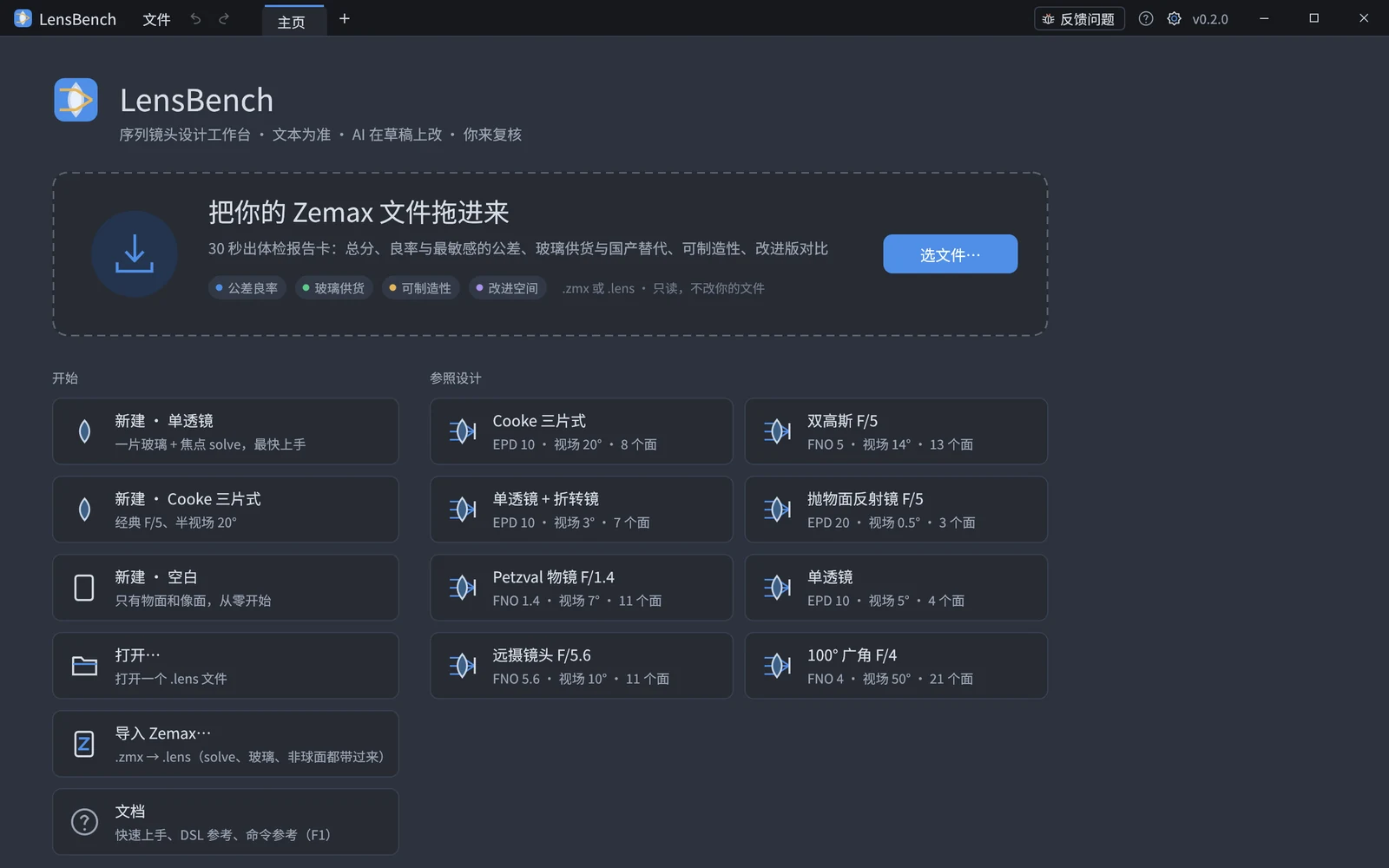
Open LensBench from the Start menu and you land on the home page: create from a template (single lens / Cooke triplet / blank), open, import Zemax, reference designs, recent files. Double-click a .lens file to open it directly (lb gui my.lens on the command line does the same).
Open a design (the picture below is the Cooke triplet from the reference designs):
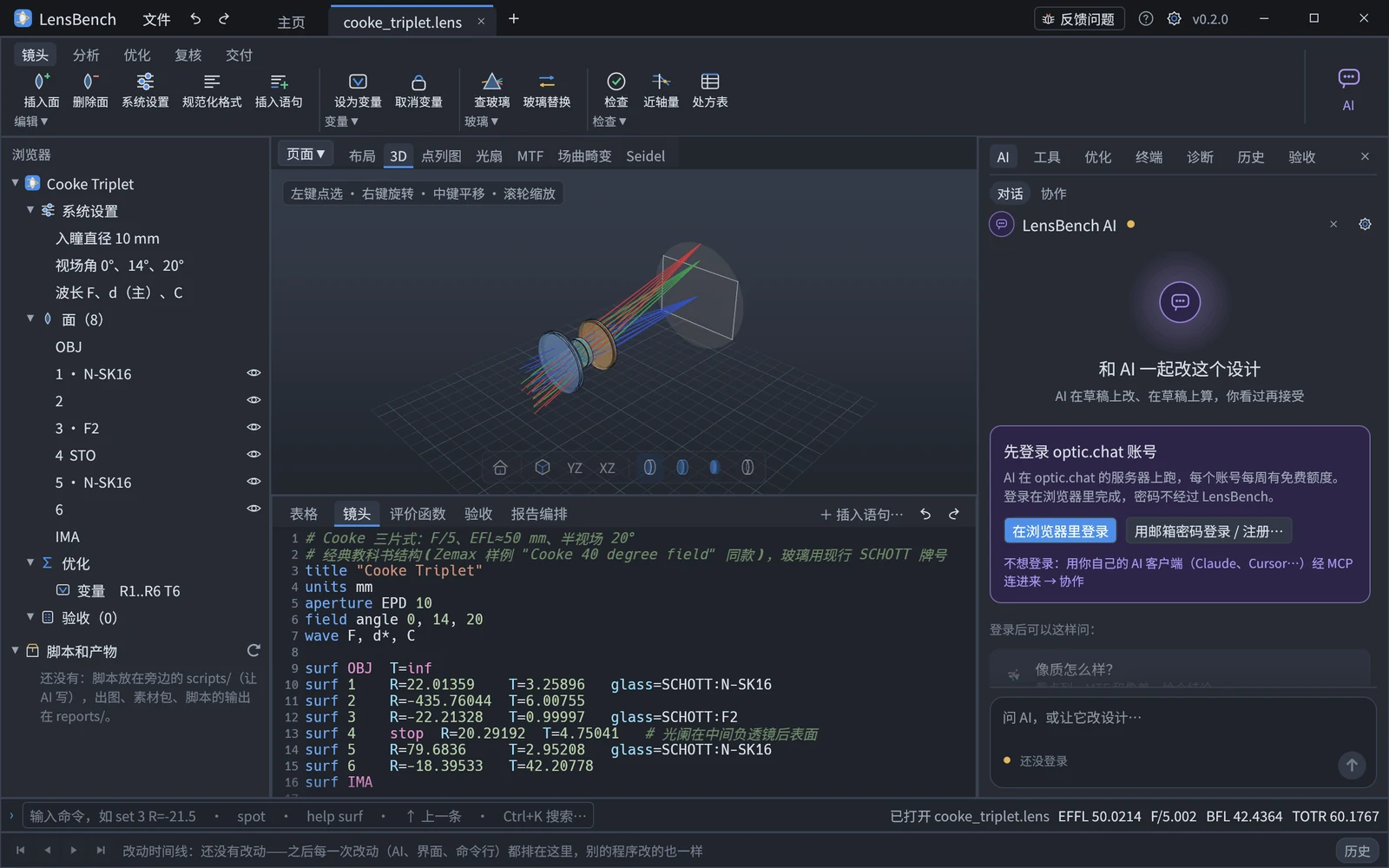
- The analysis view is in the middle (it shows the 3D canvas first by default); "镜头数据" (Lens data) below is the LDE table and the
.lenstext (four tabs: Lens / Merit function / Acceptance / Report orchestration); on the left are the browser (design outline) and the system settings. The table, text, browser and system settings are several views of the same piece of text: change any one and the others sync immediately. - The analysis view has 30 pages (3D, layout, spot diagram, ray fan, MTF, field curvature, …), recomputed automatically in the background after a change; while the new result has not come back, a "过期" (Stale) badge sits at the upper right of the plot.
- Ctrl+K searches all commands and F1 opens the documentation; the command line at the bottom of the window (Ctrl+L) lets you type commands directly, written the same as
lbbut omitting the file argument, with the full output in the "终端" (Terminal) page on the right. Ctrl+Z / Ctrl+Y undo and redo work everywhere.
See the GUI guide for details.
Command line
The command-line program is lb.exe in the install directory: open a terminal in the install directory, or add it to PATH. Create a Cooke triplet from the template, then look at the prescription, first-order quantities and spot diagram:
lb new my.lens --template cooke
lb show my.lens          # prescription table (LDE view)
lb paraxial my.lens      # EFFL / BFL / F# / entrance and exit pupils / total length (Zemax convention)
lb spot my.lens          # spot diagram RMS / GEO (µm)
The last line of an analysis result is the evidence id (such as 证据 ev-4346c96cfa, where 证据 means "evidence"): it is determined by the model, the engine and the sampling parameters, and rerunning the same analysis on the same design gives the same id. Type evidence <id> in the desktop app's bottom command line (the output is in the "终端" page on the right), or have the AI call the evidence tool, to look up the command and parameters used to compute it (evidence is registered within the session; a standalone lb does not keep it).
For commands that modify a design, add --dry-run first to see the diff and the before/after metrics, then run it again without --dry-run once you have confirmed. For example, to change the thickness of the last surface to a paraxial focus solve:
lb set my.lens 6 "T=solve(marginal_height,0)" --dry-runThe output below is the program's real output, which stays in Chinese ("同时取消变量 T6" means "also removes variable T6", and "预览(未写入)" means "Preview (not written)"):
surf 6: T=solve(marginal_height,0)(同时取消变量 T6)

预览(未写入):
…
-surf 6           R=-18.39533   T=42.20778
+surf 6           R=-18.39533   T=solve(marginal_height,0)
…
 EFFL 50.0214 → 50.0214   BFL 42.4364 → 42.4364   FNO 5.00213 → 5.00213   TOTR 60.1767 → 60.4054
Only that one value was changed in the text (and T6 was removed from the var line along the way); comments and alignment are preserved. Try a few more:
lb plot my.lens spot --out spot.pdf           # publication-quality figure (with frame and evidence id), PNG / SVG / PDF
lb default-merit my.lens "spot centroid"      # default merit function (like Zemax's optimization wizard)
lb op-add my.lens "EFFL target=50"            # add one more: keep the focal length at 50 mm
lb optimize my.lens --dry-run                 # optimize the variables in the template (var R1..R6 T6), look at the result first
lb spec-add my.lens efl target=50mm tol=1%    # write an acceptance spec (quantities with units need the unit)
lb verify my.lens                             # check every spec (recomputed independently with the standard sampling)
lb export-zmx my.lens my.zmx                  # export for Zemax (with a table of the numbers you should see in Zemax alongside)
All commands support --json (structured output). lb commands lists all commands, and lb help surf looks up the .lens syntax; for the full description see the command reference.
MCP: let the AI operate
The MCP server is installed with the desktop app and is started in the background by the AI client. The easiest way to set it up: click "AI" at the right end of the desktop app's ribbon, choose a client, and click "写入配置文件" (Write config file) (see the "MCP" section of Install). It can also be configured from the command line: the start command carries --root <project directory>, and the AI can read and write only files in that directory:
lb mcp-config                                 # list the config snippets for Claude Code / Claude Desktop / Cursor / Cherry Studio / Trae
lb mcp-config --client claude-code --write    # write into .mcp.json in the current directory (backs up the original file first, leaves other servers alone)
For differences between clients (timeouts, progress, tool-count limits) see Native AI. Once configured, just say:
Open my.lens and change the thickness of the last surface to a paraxial focus solve, and see how much the total length changed.
The AI calls open → set(dry_run=true) to show you the diff and the change in metrics → it executes for real only after you confirm; when it reports numbers it attaches an evidence id, so you can trace back to that computation.
Next steps
- GUI guide
- .lens guide: write a lens from scratch
- Merit Function and Optimization
- Plotting guide: plot types, frames and evidence, acceptance specs
- Report pack: export the figures, tables and conclusions for a report in one go
- Using LensBench from Python
- Coming from Zemax: Zemax → LensBench mapping