
GUI Guide
Open LensBench from the Start menu (it lands on the Home page first), or double-click a .lens file to open it directly; lb gui my.lens on the command line does the same. For installation see Install.
Layout
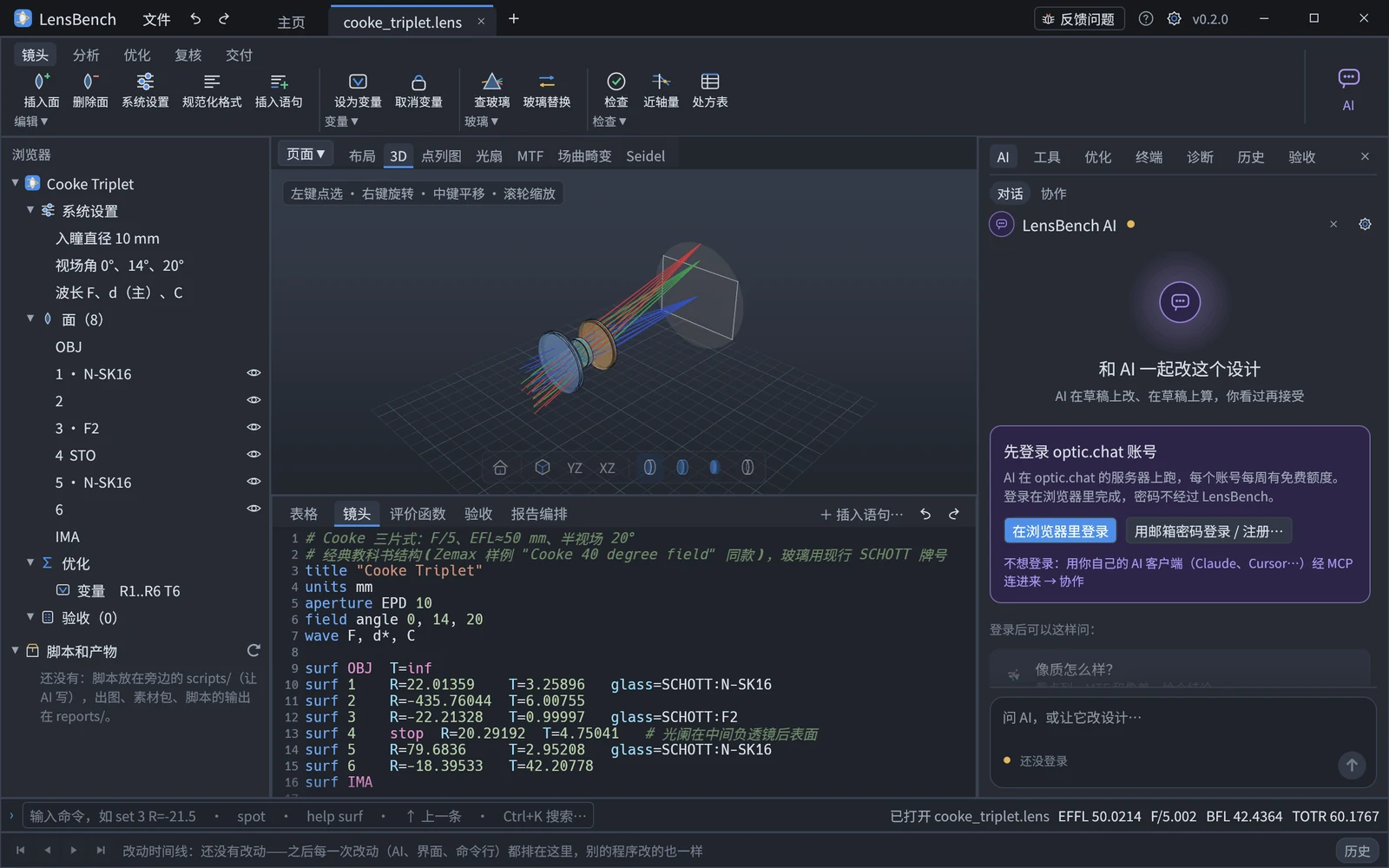
Where everything sits:
┌ LensBench  文件  ↶ ↷ │ 主页 │ my.lens ● × │ +              ● AI(MCP)·Claude 在线   反馈问题  ?  ⚙ ┐
├ 镜头  分析  优化  复核  交付                                                                │ ✦  ┤
│ ⊕ ⊖ ☰ ≡ ≡+ │ V 🔒 │ △ ⇄ │ ✓ ⊣ ▦                                                           │ AI │
│ 编辑 ▾       变量 ▾  玻璃 ▾  检查 ▾                                                          │    │
├ 浏览器 ──────┬ 分析视图:布局 / 3D / 点列图 / MTF / …(30 页)────────┬ 右侧栏 ────────────────────┤
│ Cooke Triplet│                                                      │ AI 参数 优化 终端 诊断 历史…│
│  系统设置    │                                                      │ (启动开着 AI 页)          │
│  面(8)  👁 │                                                      │                           │
│  优化        │         ⌂ ▦ ⬡ │ ▤ ⧉ ⇪ ⚙   ← 浮动导航条               │                           │
│  验收(0)   │                                                      │                           │
├ 系统设置 ────┼ 镜头数据:LDE 表格 ⇄ DSL 页签 ───────────────────────┤                           │
│ 名称 孔径 …  │  表格 │ 镜头  评价函数  验收  报告编排               │                           │
├──────────────┴──────────────────────────────────────────────────────┴────────────────────────────┤
│ › 输入命令,如 set 3 R=-21.5                                      EFFL 50.02  F/5.00  BFL  TOTR │
│ ⏮ ◀ ▶ ⏭  ✎ ✎ Σ ⟳ …   ← 改动时间线(AI 紫 / 手改绿 / 命令行灰)                                │
└──────────────────────────────────────────────────────────────────────────────────────────────────┘
The labels in this diagram are the interface text as it appears in the (currently Chinese-only) desktop app.
| Area | What it is |
|---|---|
| Title bar | The title bar is the window's own title bar: drag an empty spot to move the window, double-click to maximize / restore; the minimize, maximize and close buttons are at the right end (Preferences lets you switch back to the system title bar). It holds the 文件 (File) menu (new, open, recent files, save / save as, close current design, import / export Zemax, report pack; the "Edit", "Analysis" and "Optimize and review" submenus — there is no separate menu bar, so recalculate now, switching analysis pages, optimizing and sign-off are here too; Home, Preferences, quit), undo / redo, the 主页 (Home) tab and the document tabs (one per design; unsaved ones carry a ●, × closes, Ctrl+W), and + to create from a template. On the right: the online status of the AI connected to the same lens, 反馈问题 (Report a problem), the help menu "?" (Keyboard shortcuts…, Check for updates…, About: version, engine build number, third-party notices), Preferences, and the version number |
| Ribbon | The top row has the pages 镜头 (Lens: edit the prescription) / 分析 (Analysis: switch analysis pages, make figures) / 优化 (Optimize: merit function, variables, local / global optimization) / 复核 (Review: changes, acceptance, sign-off) / 交付 (Deliver: orchestration, report pack, export Zemax); below it are the icon buttons of that page, grouped. Group names carry a ▾; click to list every action in the group (with text labels). Switching to the "Optimize" page also switches the bottom area to the "Merit function" tab |
| Browser (left) | The outline of the .lens: system settings, surfaces (glass, stop, surface type), optimization (variables, default merit function, let, op), acceptance, views, deliverables. Click an item to jump the text to that line (a surface is also selected in the table, layout and 3D); 👁 hides / shows that lens in 3D; right-click gives the item's common actions (edit this surface, insert a surface after it, delete, make it a variable, delete this operand / spec, …) |
| System settings (lower left) | Name, aperture, fields, wavelengths, glass catalogs, ray aiming; editing one changes the corresponding system statement |
| Analysis view (middle) | 30 analysis pages (see "Analysis" below). A design opens on the 3D canvas by default (Preferences can change this to the 2D layout; 3D is an optional component — if it is not installed, the 2D layout is used instead, see Install). The floating navigation bar at the bottom: ⌂ fit, ▦ grid (on the 3D page, the ground grid), ⧉ copy publication figure, ⇪ export publication figure, ⚙ options for this figure, ▤ data table; the 3D page adds view angle, section, measurement and "More" (hide selected, show all, screenshot, turntable, glTF) |
| Right sidebar | Tabs from left to right: AI (open at startup: built-in chat and collaboration, see "AI"), 参数 (Parameters: the parameter form opened by buttons marked "…", with live preview, see "Parameters"), 优化 (Optimize: choose an algorithm, watch the MF curve, apply the result, see "Merit function and optimization"), 终端 (Terminal), 诊断 (Diagnostics; carries a count when there are errors), 历史 (History, see "Version history"), 验收 (Acceptance). The sidebar can be resized, and × at the top right collapses it (scripts and their outputs are under the browser on the left, see "Scripts and artifacts") |
| Lens data (bottom) | The tab strip starts with 表格 (Table, the LDE), followed by four tabs for the .lens text: 镜头 / 评价函数 / 验收 / 报告编排 (Lens / Merit function / Acceptance / Report orchestration; see "Text editor"). When something elsewhere switches to a text tab (Ctrl+M, clicking a diagnostic to jump to a line), the table steps aside |
| Command line (bottom) | Type commands directly, with the same syntax as the lb command line (see "Command line"). On the right it permanently shows the sign-off status, the configuration selector (only for multi-configuration designs, see "Multi-configuration") and EFFL / F# / BFL / TOTR |
| Timeline (very bottom) | The change log laid out as a row of icons in time order (see "Change timeline") |
| AI (right end of the ribbon) | A single button (Ctrl+Shift+A) that takes up only this ribbon row: opens / collapses the AI tab on the right (see "AI") |
The table, the text, the browser and the system settings are several views of the same .lens text: a change in any one of them is reflected in the others immediately. Undo / redo (Ctrl+Z / Ctrl+Y or Ctrl+Shift+Z) works across all of them because they share the session's undo stack.
The theme is dark by default; Preferences can switch to light (takes effect after a restart). Exported publication figures always have a white background, regardless of the interface theme.
Home page and multiple designs
The first screen of the Home page (the "主页" tab at the far left of the title bar) is the health-check drop zone "把你的 Zemax 文件拖进来" ("drag your Zemax file in", see the next section). Below it you can create from a template (single lens, Cooke triplet, blank), open a file, import Zemax, open the reference designs shipped with the software (what opens is a copy: the shipped file is never modified, and on save you choose the location, by default "Documents\LensBench"), see recently opened files, and open the documentation. Starting without a file lands on the Home page.
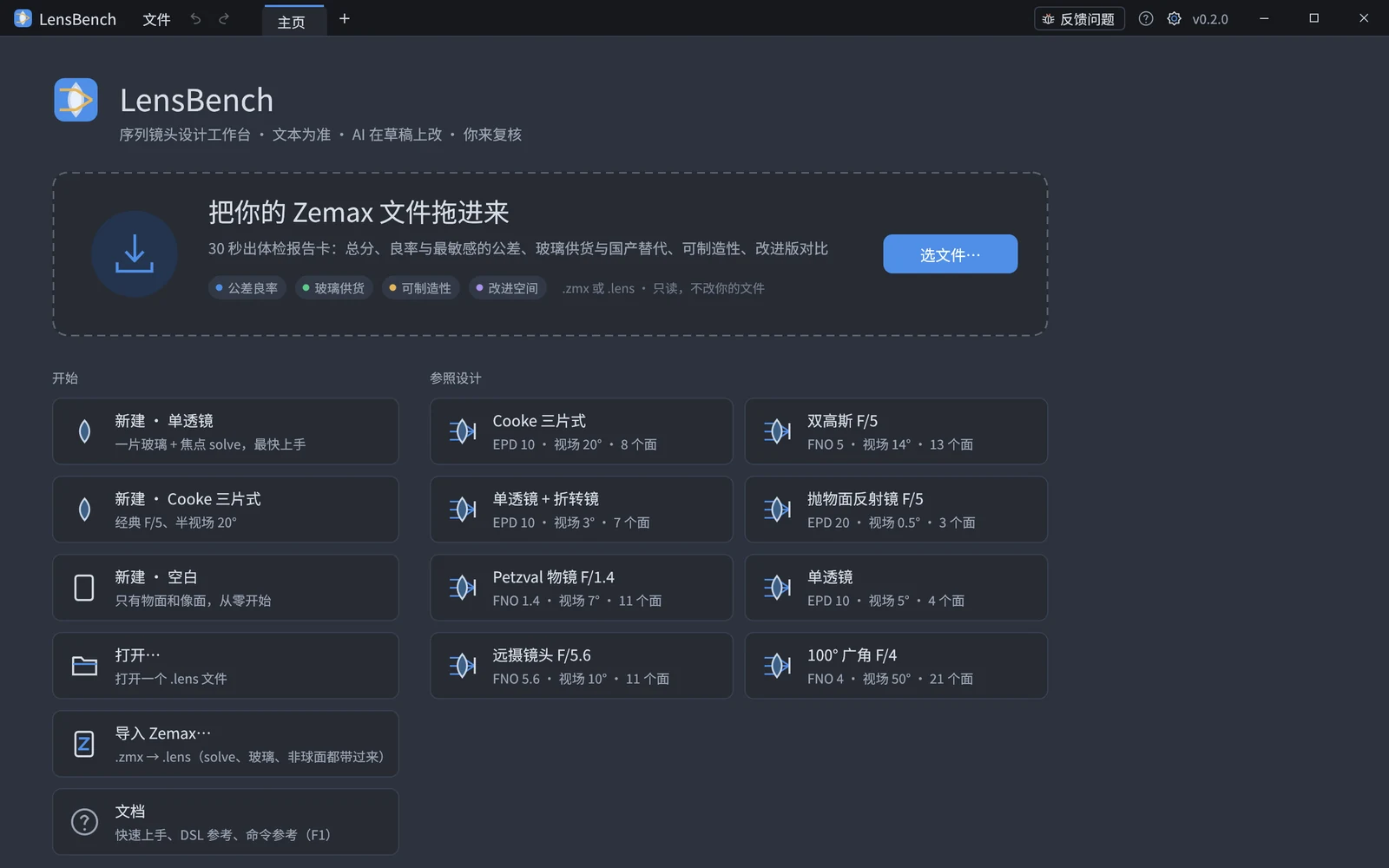
Each design gets its own document tab with its own undo history; switching tabs switches designs. A newly created design has not been saved yet; you choose the location when saving. Closing a design with unsaved changes (or quitting) asks about each one in turn whether to save.
Health check (the drop zone on the Home page)
Drag a Zemax .zmx (or a .lens) onto the big box on the Home page, or click it to pick a file. The design opens in the background (a .zmx is imported in a temporary folder and nothing is written next to it; the title bar gains an unsaved tab "name(由 Zemax 导入)"), and a fast health check runs while you stay on the Home page (the same as lb checkup). The report card appears in about half a minute. While it runs, the box shows four steps (tolerance → glass → manufacturability → improvement search) with the progress of the current one, and a cancel button; the rest of the program stays usable.
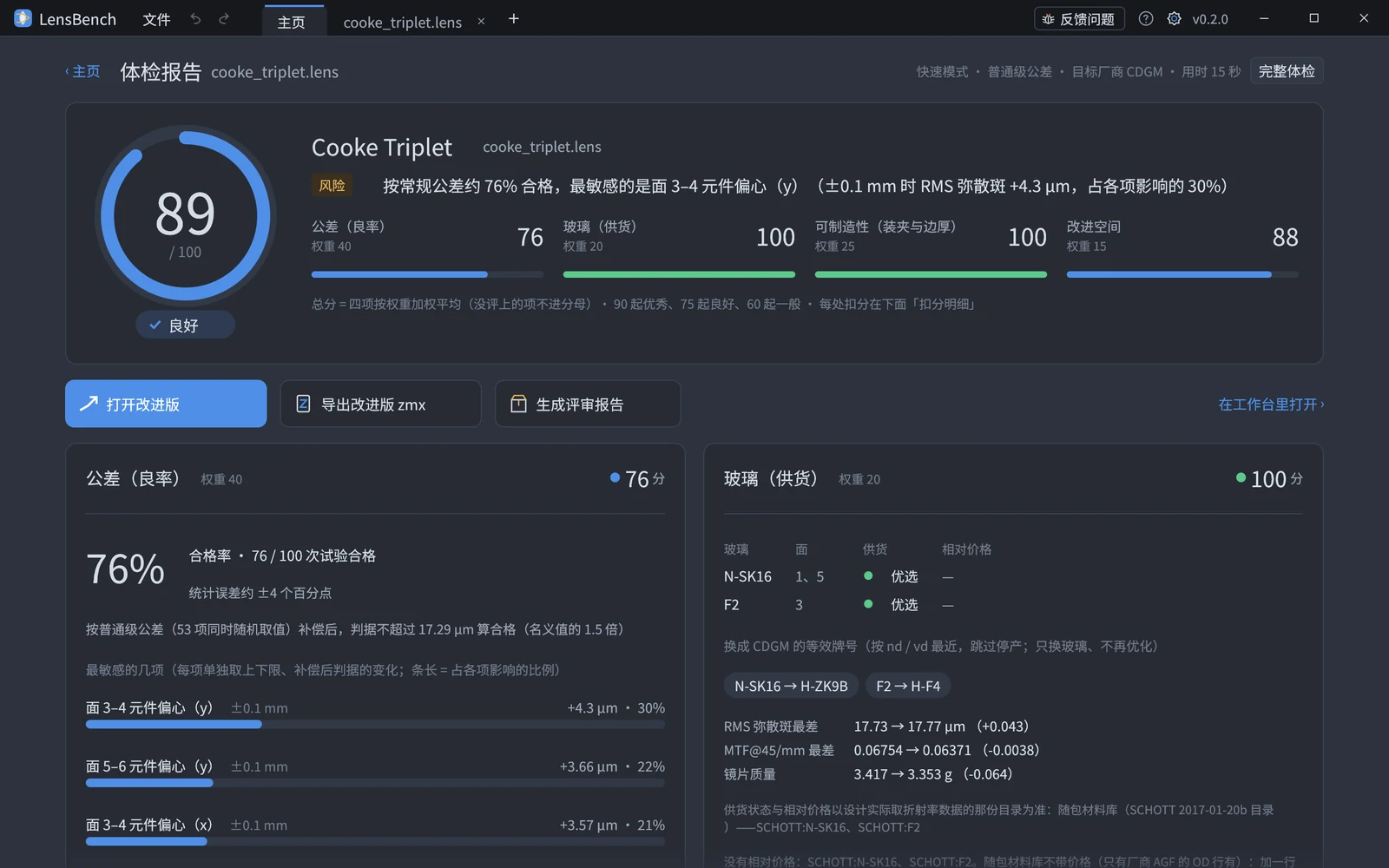
The report card replaces the Home page ("‹ 主页" goes back; the "上次体检" row under the box reopens it): the total score (0–100) with its verdict and the one-line risk; the four section scores (tolerance 40, glass 20, manufacturability 25, room for improvement 15); yield, its statistical error and the most sensitive tolerances; glass supply status and the domestic (CDGM by default) equivalents with before / after image quality and mass; mounting and edge thickness plus the inspection rule library; the improved version against the start (per-field RMS spot and worst-field MTF per frequency) — or an honest "没找到明显更好的" (nothing clearly better) — and every deduction with its evidence ids (click to copy). "完整体检" at the top right runs the thorough mode.
Conclusions and numbers are free. The three deliverables need the personal basic tier or above: open the improved version (written into that design as one undoable step, visible in the History tab), export zmx (the improved version when one was found) and generate the review report (checkup.md, figures, full data and both designs, copied to a folder you choose). Below that tier the three buttons show a lock and a one-line note; the purchase dialog opens only when you click one.
Ribbon
| Page | Groups |
|---|---|
| Lens | Edit (insert surface, delete surface, system settings, normalize, insert statement) / Variables / Glass (look up glass, glass substitution) / Check (check, paraxial quantities, prescription table) |
| Analysis | Pages / Geometry / Image quality / Aberration pages / Figures |
| Optimize | Merit function (open the Merit function tab, default merit function, add operand, insert statement) / Variables / Optimize (local, global, stop) |
| Review | Changes (version history, merge changes from disk, version comparison) / Acceptance (acceptance, add spec, check each spec) / Sign-off |
| Deliver | Orchestration (compare and evaluate actions and reports, thermal analysis, lens weight, material data) / Report pack (export, is it stale, check report numbers) / Export (Zemax, figures, export current figure) |
Every button that changes the design or produces a result corresponds to one command (the same table as the command line and MCP); the other buttons switch to a page or a panel. Hover for a description and the shortcut.
Parameters (the "参数" tab on the right, live preview as you fill in)
Commands that take parameters — buttons marked "…" in the ribbon, the right-click menu in the browser, entries chosen in the command palette (Ctrl+K) — are all filled in on the "Parameters" tab on the right; when no command is being filled in, this tab shows just one line of explanation. Commands that modify the design preview as you fill them in: pause for a moment and the command is trial-run on the current design (the design is not changed), showing the diff and the changes to EFFL / BFL / FNO / TOTR, and overlaying the result on the picture (amber lines on the 3D canvas; on other pages, switch to the "Layout" page for gray dashed lines; commands that change only the merit function or acceptance, whose effect is invisible on the layout, are not overlaid). Only clicking "Apply" actually writes it (undoable, recorded in the change log, the same path the AI takes); "Cancel" changes nothing.
Parameter names are in Chinese (hover to see the description and the spelling used on the command line), and the selected surface is pre-filled when the form opens. While required fields are incomplete, no preview is run and the form lists what is still missing; if a field is wrong, the explanation of how to fix it appears under it after you leave the input box. When there is no preview yet, examples of the command (in command-line syntax) are listed below; click one to fill it into the form.
Command line
The command line at the bottom of the window (Ctrl+L jumps to it) uses the same parser as the terminal, with the same syntax as the lb command line, minus the file argument; it acts on the current design:
set 3 R=-25 --dry-run
insert 2 R=-200 T=1 glass=SCHOTT:F2
spot --rings 8
help solve
Commands are completed by name as you type, and ↑/↓ browse the history. The first line of the result is shown next to the command line and the full output goes to the "Terminal" tab on the right; on an error or long output the view switches to the Terminal tab automatically. Ctrl+K searches all commands by name or description.
Change timeline
The bottom row of the window lays out the change log as a row of icons in time order. The color of the lower edge shows the source: purple = AI (via MCP or the built-in chat), green = manual edit (interface), gray = command line; changes that were undone, or that were closed without saving, are dimmed. A lens has a change log only once it has been saved to disk. Click an icon to select that entry: next to the command line it says who made the change, when, and what was done, and the "History" tab on the right follows the selection; ◀ ▶ step through entries, ⏮ jumps to the first, ⏭ returns to the present; double-click to view the entry in the History tab (to go back to that version, click there — preview first). The "History N" button at the right end opens the History tab.
AI (the "AI" button at the right end of the ribbon, Ctrl+Shift+A)
The "AI" tab on the right is split at the top into two pages, "Chat | Collaboration".
Chat: the built-in LensBench AI. It needs you to sign in with an optic.chat account (sign in in the browser; the password never passes through LensBench; each account gets a free daily quota), and until you do, the page shows a sign-in card. The AI edits and computes on a draft: the tools it called and the spot-diagram and MTF thumbnails it computed are written into the conversation; changes first land in the "AI draft" card below — key metrics before and after, the diff, "Compare" overlays the draft on the design, "Analyze draft" makes the analysis pages compute from the draft — and only when you click "Accept draft" does it enter the design (undoable, recorded as AI in the change log); "Discard" changes nothing. If the service cannot be reached, the reason is shown; click "Retry" to send again.
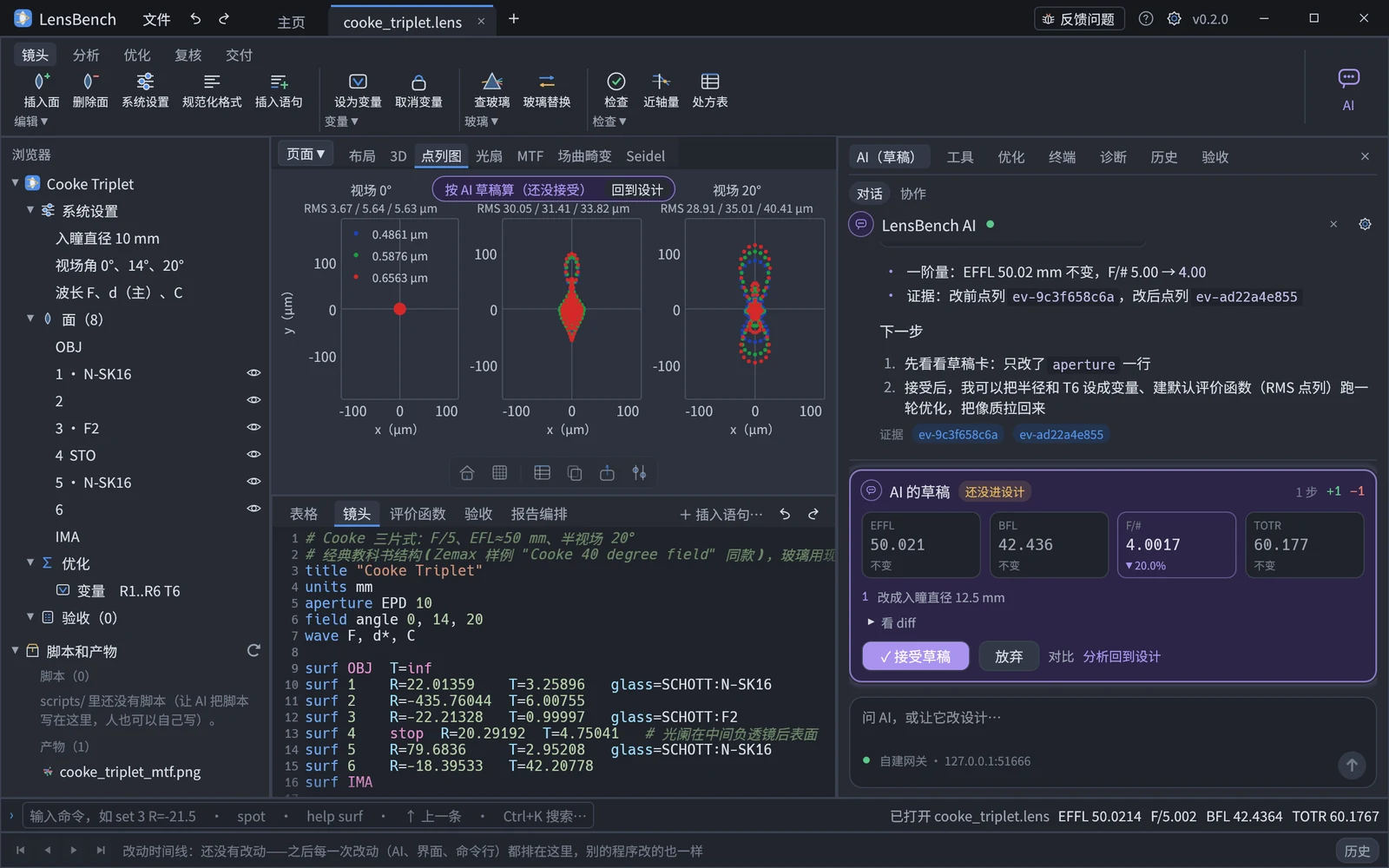
Collaboration: the AI runs in your own client (Claude Code, Claude Desktop, Cursor, Cherry Studio, Trae, …) and operates the lens through MCP while you watch it work in the software; no account is needed. The Collaboration page handles four things:
- Who is online: the AI clients connected to the same lens and which tool each called a few seconds ago (hints also appear at the right of the title bar and on the AI button).
- Connect your AI client: choose a client, then "Copy config" or "Write to config file" (that is,
lb mcp-config, which backs up the original file first), and restart the client as instructed. The project root is taken to be the folder containing the current lens. - AI changes: entries in the change log that came from the AI; click one to view it in the History tab; "Review in History" brings up the AI filter.
- Jobs to hand to the AI: diagnose and optimize, Zemax reconciliation, prepare report material — copy the prompt that carries the current file path and paste it into your AI client (if the client supports MCP prompts you can also pick the template of the same name directly in the client).
Syncing with disk (the AI and you editing one file at the same time)
The AI's MCP server, the desktop app and the command line are independent programs; they see each other through the .lens on disk and the change log in the .lensbench/ folder next to it:
- When someone else (the AI, another window, an external editor) saves to disk: if you have no unsaved changes, the desktop app loads the new version directly (undoable) and says next to the command line who changed it; if you do have unsaved changes, a sync banner appears above the analysis view: "Merge…" brings the other side's changes in (the diff is shown first; when the two sides changed different lines they merge automatically, and on a conflict on the same line you choose the version on disk or yours), or "Later".
- Saving never silently overwrites someone else's changes: if the file was saved by someone else after you loaded it, the save is blocked and the banner offers "Merge…" or "Overwrite anyway".
- If the file on disk was deleted or renamed: the banner offers "Save" (write the current design out again) or "Later".
- Your manual edits are also recorded in the change log (so the AI knows what you changed the next time it calls a tool): the table, system settings and commands are each recorded as a command; typing in the text editor is merged into one "manual edit" per pause (4 seconds by default, adjustable in Preferences); undo, redo and applying an optimization result are recorded too.
The same check applies on the command line and in MCP: when save is blocked, use merge_disk (you can --dry-run it first) to bring the changes on disk in.
Preferences and autosave
The ⚙ in the title bar (Ctrl+,): theme (dark / light), the main view at startup (3D canvas / 2D layout), interface font size (theme and font size take effect immediately), whether opening a file also shows the Home page first, how long a typing pause must be before a manual edit is recorded, whether to write the online heartbeat (so that the AI connected to the same lens knows the desktop app is open), the interval for autosaved recovery copies, and whether to check for updates automatically plus the update channel (stable / beta, see "Updates" below). The rows below are user-level settings that affect computation, such as the MTF sampling cap used during optimization (for MTF / Strehl operands, default 256) — they are the same file that the command line lb settings and the AI (MCP) read. To make it differ for one run only, give optimize --mtf-sampling 512 on the command line, see Merit function and optimization. Changing the design always triggers a background recalculation of the analyses.
Recovery copies: unsaved changes are written every few minutes to .lensbench/recovery/ next to the lens (your .lens file is not touched); the next time you open the same file, if the copy differs from the file, a banner above the analysis view offers "Restore" or "Discard". New designs that have never been saved to disk get no copy.
Help "?" › Keyboard shortcuts… lists all shortcuts (the common ones: Ctrl+N new single lens, Ctrl+O open, Ctrl+S save, Ctrl+Shift+S save as, Ctrl+K search commands, Ctrl+L command line, Ctrl+M merit function, Ctrl+Shift+M add operand, Ctrl+Shift+I insert statement, Ctrl+Shift+O local optimization); "?" › Check for updates… see "Updates" below; "?" › Buy / upgrade… see "Paid tiers" below; "?" › About shows the version, the engine build number, the sign-in credential (tier, time remaining) and the third-party notices. From the Home page use "?"; once a design is open you can also search the command palette (Ctrl+K) for "shortcuts", "updates" or "about" to open them.
Signing in: use an optic.chat account (the same one as on the AI tab; the free tier also requires signing in); the credential renews automatically while online. When the credential is invalid at startup or after a save, a sign-in page covers the window (not enforced when running from source) — sign in in the browser or enter email and password, and you return to where you were as soon as sign-in succeeds; running optimizations and analyses are not interrupted and wait until the next startup or save. The credential triggers a one-time status-bar notice when less than 24 hours remain. If this version has been retired, or this installer has expired (signing in does not help), the same page covers the window whether or not enforcement is on, and offers "Download new version" and "Check for updates" instead; when expiry is near (less than 7 days left), or the version has been retired but the credential has not yet expired, the status bar shows a notice once for each. The About page shows the tier (until when the trial runs), how long the credential remains valid, and until when this version can be used.
Paid tiers: report packs, report-number checks, sign-off and Zemax export are available from the Personal Basic tier up, and running orchestration from the Personal Advanced tier up (the list is the same as on the command line and in MCP). When your tier is not enough, these buttons and menu items carry a small lock labeled "from Personal Basic"; clicking does not run them but shows an explanation: which tier the feature belongs to, what that tier includes, and what tier you are on. If you are not signed in it offers "Sign in to start a 7-day full-feature trial" (started at the first sign-in on a new device, once per account and once per device); if signed in it offers "Go to purchase" (opens the purchase page in the browser) and "I've paid, refresh". Commands where only part of one command is paid, such as the Monte Carlo of tolerancing and custom compensators, carry no lock, and show the same explanation when that part is used. "?" › Buy / upgrade… and the "Buy / upgrade…" on the About page open it at any time. Running from source shows no locks and blocks nothing.
LDE table
| Display | Meaning |
|---|---|
22.01359 V (yellow background) | Optimization variable |
42.4374 S (blue text) | solve; shows the effective value after solving; hover for the expression |
-50 P | pickup |
5 U | Fixed semi-aperture |
4 STO (blue-background row) | Stop surface |
model(1.62, 36) V(nd/vd) | nd / vd of a model glass are optimization variables |
- Edit by double-clicking, Enter / F2, or just typing; arrow keys move between cells, Enter writes and moves to the next row, Esc discards. The edit box holds the cell exactly as it is written in the text, so you can type
solve(marginal_height, 0),pickup(2, scale=-1)orSCHOTT:N-BK7directly. - Designs with hundreds of surfaces stay smooth: the header sticks to the top and only the visible rows are drawn; when the arrow keys leave the visible area, or a different surface is selected in 3D / the browser / the text, the table scrolls to that row.
- When a solve / pickup cell is changed to a number, you are first asked whether to drop the solve ("Fix at …" / "Keep solve"); changing a parameter inside the solve does not ask.
- Editing a cell = one
setcommand = one minimal text edit: only that one value changes in the text, and comments and alignment are preserved. - Illegal input (for example a glass that does not exist) is rejected and the original value stays; the reason is shown next to the command line.
- Right-click menu: insert surface before / after, delete surface, set as stop, set / unset as variable (nd / vd of a model glass can also be made variables), common solves (paraxial focus, best focus; other solves and pickups: choose the kind and fill in the target in the "Insert statement" window, with the surface number and column pre-filled), fix a solve at its current value, add an operand on this surface (opens the "Add operand" window with the surface number pre-filled).
- Hovering a glass cell shows the resolved "vendor:grade". The decenter / tilt parameters of a coordinate break row are shown in the comment column and edited in the text.
- Shortcuts: Ctrl+I inserts after the current surface, Ctrl+Shift+D deletes the current surface.
Text editor
The text at the bottom is split into four tabs, all showing lines of the same .lens text divided by statement; an edit in any tab only changes those lines:
| Tab | Which lines |
|---|---|
| 镜头 (Lens) | title units aperture field wave surf var config mc and all other statements (including lines with mistakes or lines that cannot be recognized) |
| 评价函数 (Merit function) | op let default; the optimization toolbar is at the top of the tab (see "Merit function and optimization") |
| 验收 (Acceptance) | spec |
| 报告编排 (Report orchestration) | view (options of each kind of figure), pack (what goes into the report pack and in what order), action / report (the changes to try and the evaluation items to inspect afterwards, see Orchestration) |
- Blank lines and comment-only lines go with the statement below them (those at the end of the file go with the one above), so a comment written in front of a group of statements ends up in the same tab as that group.
- Line numbers are line numbers of the whole file: the line number in a diagnostic, a jump, the browser or the command line is the number shown to the left of the tab.
- A new line added in a tab is inserted in the file after the line above it in the tab; one added at the very top of the tab is inserted before the first line of that category; if the tab was empty it is added at the end of the file (after a blank line). When an edit does not change the line count (only content changed), lines are replaced in place. A statement of another category (for example
surfwritten in the Merit function tab) is still written into the file, and shows up in the tab where it belongs once you leave this one. - Double-clicking a diagnostic, clicking a line in the browser, or clicking a surface in the layout / 3D switches to the tab holding that line. Switching tabs does not itself change the file.
- A tab with errors carries the count in its title, for example "Merit function (1 error)".
- Syntax highlighting; line numbers on the left, with lines in error shown in red.
- Diagnostics: errors get a red wavy underline, warnings yellow, hints blue; hovering shows the diagnostic code, the explanation and a "did you mean…" suggestion. The "Diagnostics" tab on the right lists all diagnostics; double-click to jump to the position.
- Smart suggestions (Ctrl+Space, or popping up automatically after typing
=or(; also after typing a space following the name on anopline):- Every completion carries a description: at the start of a line, statement names (with a one-line description); after
op, operand names, with category, description and unit, and they can be found by their Chinese description or their Zemax name (typing "入射" finds RAID); on asurfline, parameter names; afterglass=, all grades (vendor:grade) plusMIRROR,model(andideal(; aftertype=, surface types; aftersolve(, solve kinds; on awaveline, spectral line names; on avarline, R / T references; on aviewline, first the figure type, then the options of that figure. - After the name on an
opline: first the positional parameters (surface number, with glass / STO), then the parameter names not yet written (Hy=wave=…, with type, default and meaning),target=/>=/<=andweight=; afterwave=it completes with this design's wavelengths (index, λ, primary wavelength),Hy=Hx=complete with fields, andsurf=with surfaces. - Parameter hints: with the cursor on an
opline, the operand's parameter table floats above the line with the parameter being written highlighted, below it its type, default and meaning, and below that the operand's description, unit and Zemax name; for other statements it shows the syntax. - Hovering a line: on an
opline it shows the operand's full description and parameters (the Merit function tab also shows the current value and contribution); for other statements it shows the description, syntax and examples.
- Every completion carries a description: at the start of a line, statement names (with a one-line description); after
- Insert statement window (Ctrl+Shift+I; "+ Insert statement…" at the right of the tab strip, or "Insert statement…" in the ribbon, which preselects a kind according to the current tab): on the left, the statements you can insert — variable
var, Solve, Pickup, intermediate quantitylet, acceptance specspec, viewview— and on the right, the form for that kind: surface numbers are chosen from this design; a solve is filled in by kind (paraxial focus, F-number, marginal ray height / angle, …) with the target, and whether it attaches to R or T follows from the kind; for a spec, pick the kind first, then the limit (at most / at least / between / target ± tolerance), units are added automatically when only a number is written (length mm or µm, angle deg, percentage %), and for multi-configuration designs you can also choose which configuration to check on (every configuration / configuration k); the view form shows the figure's current options (switches, drop-downs, numbers), and only the changed ones are written. Below is what will be written into the text; after a short pause a background preview runs (the design is not changed): the diff, the changed EFFL / BFL / F# / TOTR, and for changes to the lens a ghost overlay on the layout; when it cannot be written, the reason is given. "Insert" = one corresponding command (vary/set/let-set/spec-add/view-set, undoable). "Make variable…" and "Add acceptance spec…" in the ribbon and browser, "Options for this figure" on analysis pages, and "Solve…" / "Pickup…" in the table's right-click menu also open it (with the relevant fields pre-filled). - After a typing pause of about 0.35 seconds the whole segment is submitted to the session (one undo step); after a longer pause (4 seconds by default) the segment is recorded as one "manual edit" in the change log.
Analysis
Changing the design triggers a background recalculation that does not freeze the interface; only the latest version of the text is computed and stale results are discarded. Paraxial quantities and the 3D scene come back with every edit (while typing, 3D follows almost in real time); analysis pages compute only the page currently being viewed (on another background thread, so slow analyses do not block editing), and the MF on the Merit function page is computed while that page is open.
A page that is computing shows "Computing "PSF"… N s elapsed" with a running count; some pages take over ten seconds the first time (PSF, image simulation), and switching to another page does not interrupt it — when you return, it is there once done. When an analysis cannot be computed on this design (for example a decentered system has no paraxial exit pupil), the reason is shown only at the lower left of that page, and the other pages work as usual. When the text has changed but the new result has not arrived, each page shows a yellow "Stale" badge at its upper right, and the old figure stays in place for comparison. Each analysis is cached by analysis key (the model plus that analysis's sampling parameters): changing a sampling option of one view makes only that page stale and recomputes only that one analysis; changing the name, comments, alignment or purely display options (such as the spot-diagram box size) recomputes nothing.
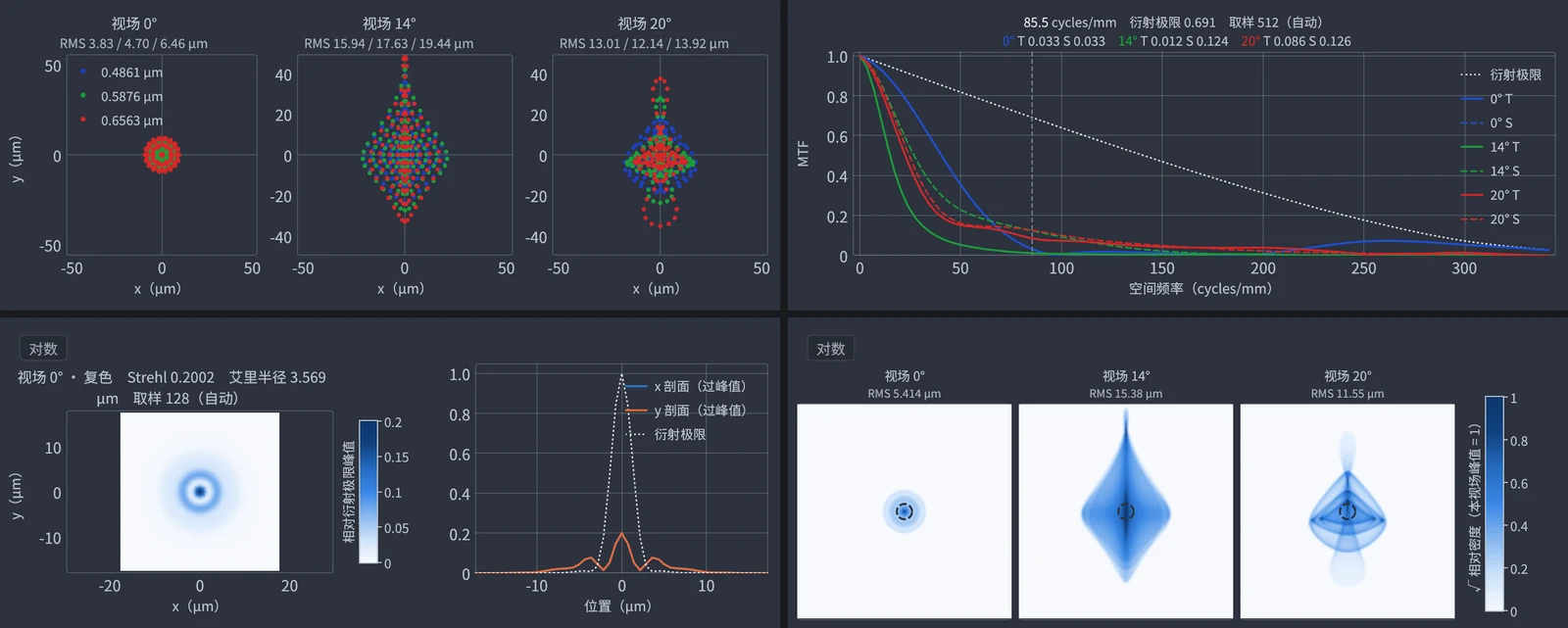
| Page | Contents and operation |
|---|---|
| “布局” (Layout) | YZ cross-section, drawn with the semi-aperture from the actual rays; lenses are filled (when the two surfaces have different apertures, they are extended flat into a step, the way Zemax draws it), one color per field. Scroll wheel zooms, drag pans, double-click fits to the window; hovering shows that surface's R / T / glass / semi-aperture / edge thickness, clicking selects that surface (see "Linked selection" below). When adjacent lenses interpenetrate or the edge thickness is negative, the surfaces concerned turn red and are listed at the lower left |
| “3D” | The default main view at startup (Preferences can change it to the 2D layout). A dark gradient background, a ground grid under the lens, and coordinate axes at the upper right (click an axis to look along it); each lens has its own glass color and is translucent (depth peeling, so front-to-back order is correct), with outlines and highlights; mirrors are silver-gray, the stop is drawn as a ring, and the image plane carries a 3:2 sensor rectangle (inscribed in the circle of maximum image height); blocked rays are drawn up to the surface that blocks them; lens edges carry a 45° protective chamfer (width min(0.3 mm, 3 % of edge radius), outside the clear aperture, display only). Mouse: left-click selects a surface (linked with the table and text), right-drag rotates, middle-drag pans, the scroll wheel zooms toward the cursor (a hint is shown at the upper left of the canvas). Floating navigation bar at the bottom: fit (zoom so everything visible), isometric, YZ / XZ (YZ points the same way as the 2D layout: z to the right, y up), turning smoothly when you switch view; the next four buttons switch the display mode — solid + wireframe (default), translucent solid (no edge lines, to see rays pass through lenses), opaque solid (fully solid, to see form and assembly; rays inside glass are hidden), wireframe only (only edges and aperture rings, colored by glass); the chosen mode is kept next time. The 👁 at the end of each lens row in the browser hides / shows it in 3D. When a command preview, optimization result or AI draft is "Compared", the changed version is overlaid on the 3D view in amber lines |
| “点列图” (Spot diagram) | One subplot per field, wavelengths in separate colors, coordinates relative to the chief ray (image-plane local coordinates, µm); all subplots share one scale and zoom together; the title gives the RMS per wavelength, and hovering shows the coordinates of a single point |
| “点密度” (Point density) | One cell per field: false-color energy density (square-root scale) of the landing points of several hundred thousand rays, the same box and linked zoom, with a white dashed line for the Airy circle; the "Log" button at the upper left shows faint scatter (display only), and hovering reads the relative density |
| “包围能量” (Encircled energy) | One curve per field plus the diffraction-limit dotted line, with dots marking the 80 % energy radius; drag the vertical line and the title reads out the encircled energy of each field at that radius |
| “相对照度” (Relative illumination) | Relative illumination (solid), fraction of the pupil passed (dashed) and the cos⁴θ reference (dotted) against field; the title gives the minimum value and the effective F-number |
| “MTF 随视场” (MTF vs field) | Tangential (solid) / sagittal (dashed) MTF against field at several frequencies; the frequencies, number of field points and sampling are written as view mtf_vs_field through "Options…"; the title prints the sampling, with a red warning when sampling is insufficient |
| “离焦 MTF” (Through-focus MTF) | MTF of each field against image-plane defocus at one frequency, with a triangle at the top marking the best focal plane (hollow = outside the scan range), and the title lists each field's best focal plane |
| “网格畸变” (Grid distortion) | Ideal grid dashed, actual grid solid, grid points colored by distortion (barrel blue, pincushion red); "Magnify ×10" at the upper left shows the shape of small distortions (display only), and hovering reads the distortion at a grid point |
| “图像仿真” (Image simulation) | Ideal image and simulated image side by side with linked zoom; by default a Siemens star over a small patch near relative field 0.7 (blur and color fringes from aberrations); "Options…" lets you switch to the whole field or another test chart |
| “近轴” (Paraxial) | EFFL, BFL, F/#, entrance / exit pupil, total length and so on (Zemax System Data conventions); decentered / tilted systems show "unavailable" |
| “RMS 表” (RMS table) | RMS for each field × wavelength, polychromatic RMS / GEO |
| “光扇” (Ray fan) | One row per field: tangential on the left (vs PY), sagittal on the right (vs PX), wavelengths in separate colors, all vertical axes linked; hovering a point on a curve highlights that ray in sync on the layout and spot diagram (see "Linked selection") |
| “MTF” | Tangential solid, sagittal dashed, diffraction limit dotted; drag the vertical line and the title reads out the T / S values of each field at that frequency in real time; the title prints the sampling (automatic by default, view mtf sampling=256 fixes it), with a red warning when sampling is insufficient |
| “场曲畸变” (Field curvature / distortion) | Field curvature on the left (T solid / S dashed, per wavelength), distortion (%) on the right, vertical axes linked |
| “纵向像差” (Longitudinal aberration) | Intersection of axial tangential rays with the axis relative to the image plane (mm) vs normalized pupil, per wavelength |
| “垂轴色差” (Lateral color) | Chief-ray image height of each wavelength relative to the primary wavelength (µm) vs field; dotted line is shortest − longest wavelength, dashed lines are ±Airy radius |
| “色焦移” (Chromatic focal shift) | Shift of the paraxial focus with wavelength (µm); the light band is the diffraction-limited depth of focus 4λF#², and dots are the system wavelengths |
| “离焦点列” (Through-focus spot) | Rows = fields, columns = defocus positions in front of and behind the image plane, boxes at the same scale, the title gives the polychromatic RMS |
| “Seidel” | Bar chart of S1–S5, C1–C2 per surface and their sum (fixed color order, hover to read values); the data page adds the wavefront aberration coefficients |
| “足迹” (Footprint) | Landing points of each field's beam on a given surface (local coordinates of that surface) + beam outline + dashed circle for the clear semi-aperture; view footprint surface=all gives one cell per surface |
| “波前” (Wavefront) | False-color OPD over the pupil (blue ↔ red, zero neutral gray, symmetric color scale) + interferogram; the title gives RMS / P-V, and hovering reads the OPD (λ) at that point; view wavefront field=3 switches field |
| “PSF” | FFT PSF in false color (relative to the diffraction-limited peak, peak = Strehl) + x / y profiles through the peak and the diffraction-limited Airy dotted line; the "Log" button at the upper left toggles a log scale (display only), and hovering reads the intensity; view psf field=3 switches field; the title prints the sampling, with a red warning when sampling is insufficient |
| “玻璃图” (Glass map) | nd–vd diagram: small dots for catalog grades, large dots for this design's glasses labeled with the grade; model glasses are drawn as diamonds with a dashed line to the nearest catalog glass; hover to read "vendor:grade nd vd" (to see what is nearby when substituting glass); view glass_map catalogs=all |
| “矢高表” (Sag table) | Top: sag and best-fit sphere; bottom: deviation from the BFS (µm); the two plots' horizontal axes are linked; the title gives the BFS radius, maximum deviation and slope; view sag surface=3 |
| “全视场像质” (Full-field image quality) | Heat map of polychromatic RMS over the 2D field (light = good, dark = poor), with the field circle, the defined fields and the worst spot; hover to read values; view field_map area=sensor |
| “RMS 随视场” (RMS vs field) | Thin lines per wavelength, a thick polychromatic line, and a diffraction-limit dotted line; the title gives the polychromatic maximum and its position; view rms_field data=wavefront ref=chief |
| “Zernike” | Bar chart of Zernike coefficients (positive and negative in separate colors, Z1 not drawn), the title gives RMS / P-V (about the centroid) and the fit residual; hover to read "Z index, name, coefficient"; view zernike field=3 kind=standard |
| “惠更斯 MTF” (Huygens MTF) | Drawn like the MTF page, computed from the Huygens PSF on the image plane; computed only when you switch to the page; view huygens_mtf sampling=64 |
| “惠更斯 PSF” (Huygens PSF) | Drawn like the PSF page, with pixels on the actual image plane (differs from the FFT PSF for a tilted / curved image plane); slower than FFT, computed only when you switch to the page; view huygens_psf field=3 sampling=64 |
Ray fan / MTF / Field curvature / distortion / Longitudinal aberration / Lateral color / Chromatic focal shift / Through-focus spot / Seidel / Footprint / Sag table / Glass map / RMS vs field / Full-field image quality / Wavefront / Zernike / PSF / Huygens PSF / Huygens MTF / Point density / Encircled energy / Relative illumination / MTF vs field / Through-focus MTF / Grid distortion / Image simulation / 3D are computed only when you switch to the page. Tabs are ordered by category (geometry and rays, first-order quantities and aberrations, chromatic and glass, diffraction and image quality, illumination and simulation); the "页面" (Pages) menu at the left end of the tab bar jumps straight to a page using the same grouping.
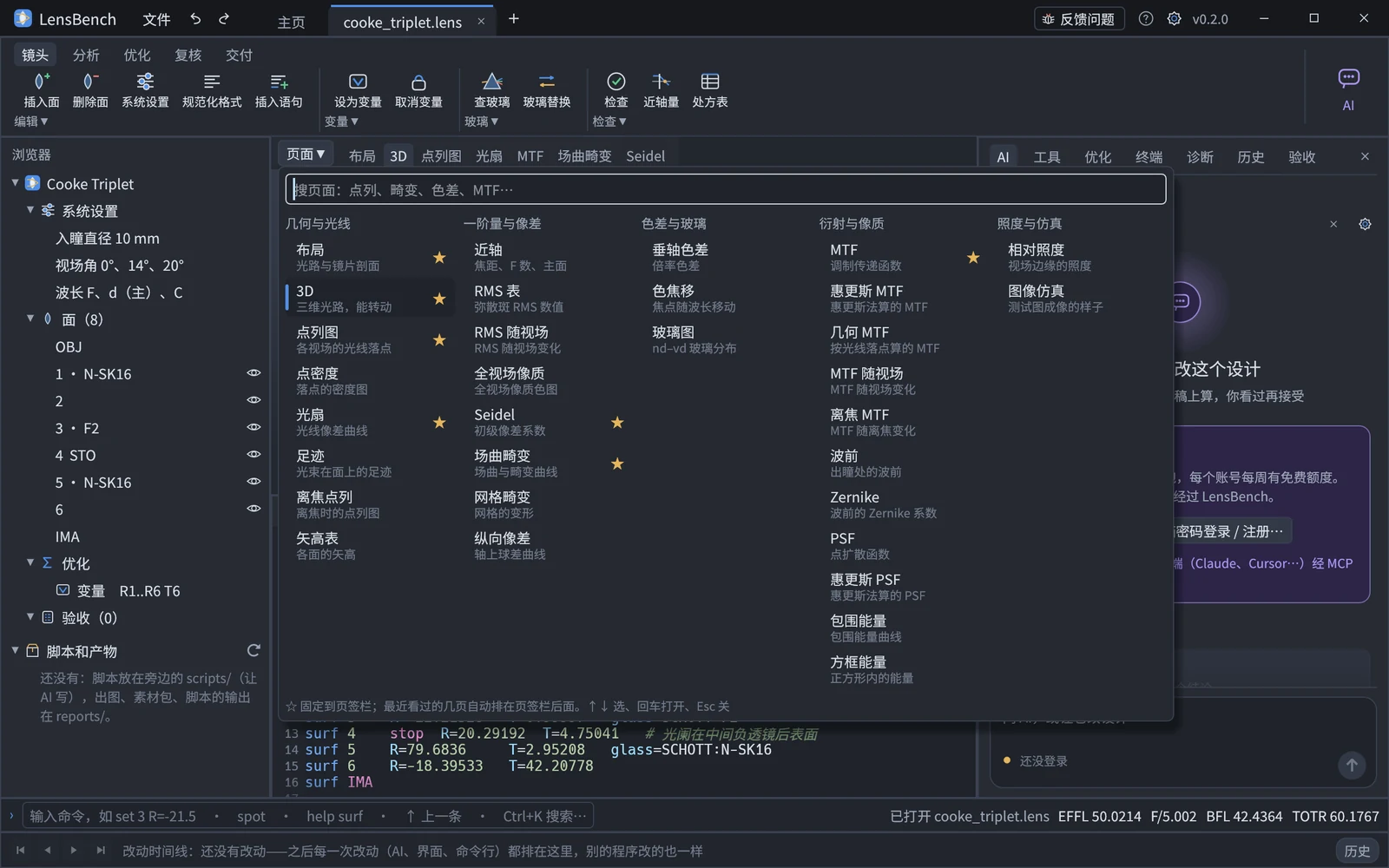 The right side of the command line always shows EFFL / F# / BFL / TOTR.
The floating navigation bar at the bottom of the view acts on the current page:
| Button | Effect |
|---|---|
| ⌂ Fit | Zoom so everything is visible (on the 3D page, zoom to the lens and rays, excluding the ground grid) |
| ▦ Grid | Add a grid to coordinate plots (kept after switching pages); the 3D page has no such button |
| ⬡ 3D view angle | Isometric / YZ / XZ (3D page only, turning smoothly when you switch; you can also click an axis of the coordinate axes at the upper right of the canvas directly) |
| Display mode (four buttons) | 3D page only: solid + wireframe / translucent solid / opaque solid / wireframe only; the current one is lit and is kept next time (see "3D" in the analysis page table above) |
| ▤ Data page | Switch to a table of the same data; Ctrl+C copies the selection (tab-separated, can be pasted into Excel / Word) |
| ⧉ Copy figure (Ctrl+Shift+C) | Puts the publication figure with its frame on the clipboard, as both bitmap and SVG (Word 2016 and later can paste SVG directly) |
| ⇪ Export (Ctrl+E) | Saves the publication figure as PNG (300 dpi) / SVG / PDF (fonts embedded), through the same pipeline as lb plot, and registers the evidence |
| ⚙ Options for this figure | The view form of the "Insert statement" window: this figure's current sampling / display options, only the changed ones are written; after insertion it becomes a view statement in the .lens (equivalent to lb view-set) |
The evidence id in the figure frame's info block is the same as the one lb plot gives (model hash + engine + sampling parameters), and lb evidence <id> can re-check it.
To write a report, use "File › Export report pack…": choose a directory and the figures, data pages, prescription / first-order / acceptance / manufacturability tables, deterministic conclusions and manifest are exported in the background (about ten seconds, the interface stays usable); when done you can open the folder directly. After the design changes, use "File › Is the pack stale…" to see which items need re-exporting. See Report pack for details. Paraxial quantities and 3D come back within tens of milliseconds after each edit; the time for each analysis page depends on the design and sampling (relative illumination, PSF and image simulation of a wide-field lens can take a few seconds to over ten).
Mounting check
Between adjacent solid surfaces (glass interfaces, mirrors, stop):
- an air gap that is negative at 1.02 × the larger semi-aperture → interpenetration (
W-CLEARANCE); - a lens whose edge thickness at the larger semi-aperture is negative, or whose center thickness is negative →
W-EDGE-THICK.
Warnings appear on the "Diagnostics" tab on the right, with the wavy underline on that surface's T=; negative thicknesses after a reflection are converted along the propagation direction, and axial negative air gaps (modeling tricks such as a virtual stop) are not reported. The command line lb check / lb layout gives the same result.
Multi-configuration
When the design contains config / mc lines (zoom, multiple configurations; see the "Multi-configuration" section of the .lens guide), a configuration selector appears at the right of the command line (not shown for single-configuration designs):
- All analysis pages compute on the selected configuration; after switching, each page is first marked "Stale" and then recomputed. On the command line the same is done with
--config k. - The MF on the Merit function tab is labeled "MF (configuration k)" and is the value of the current configuration; an
opline can useconfig=kto compute only one configuration, for joint multi-configuration optimization. - The Acceptance page gives only verdicts, not evidence ids (for evidence use
lb verify --config k). - The layout can stack the configurations vertically:
view layout configs=all.
Acceptance (the "验收" tab on the right, Ctrl+Shift+V)
Lists, for every spec in the .lens, its value, limit, pass / fail and source (the same verdict as lb verify: recomputed independently with the fixed specification sampling, without reading view). "Add spec…" = lb spec-add, "Delete selected" = lb spec-delete, "Re-verify" recomputes immediately; you can also write spec lines directly in the "Acceptance" tab at the bottom. When specs exist, they are also drawn on MTF (triangle markers), spot diagram (RMS coloring), field curvature / distortion (distortion limit lines), lateral color and chromatic focal shift, with colors consistent with the verdicts here.
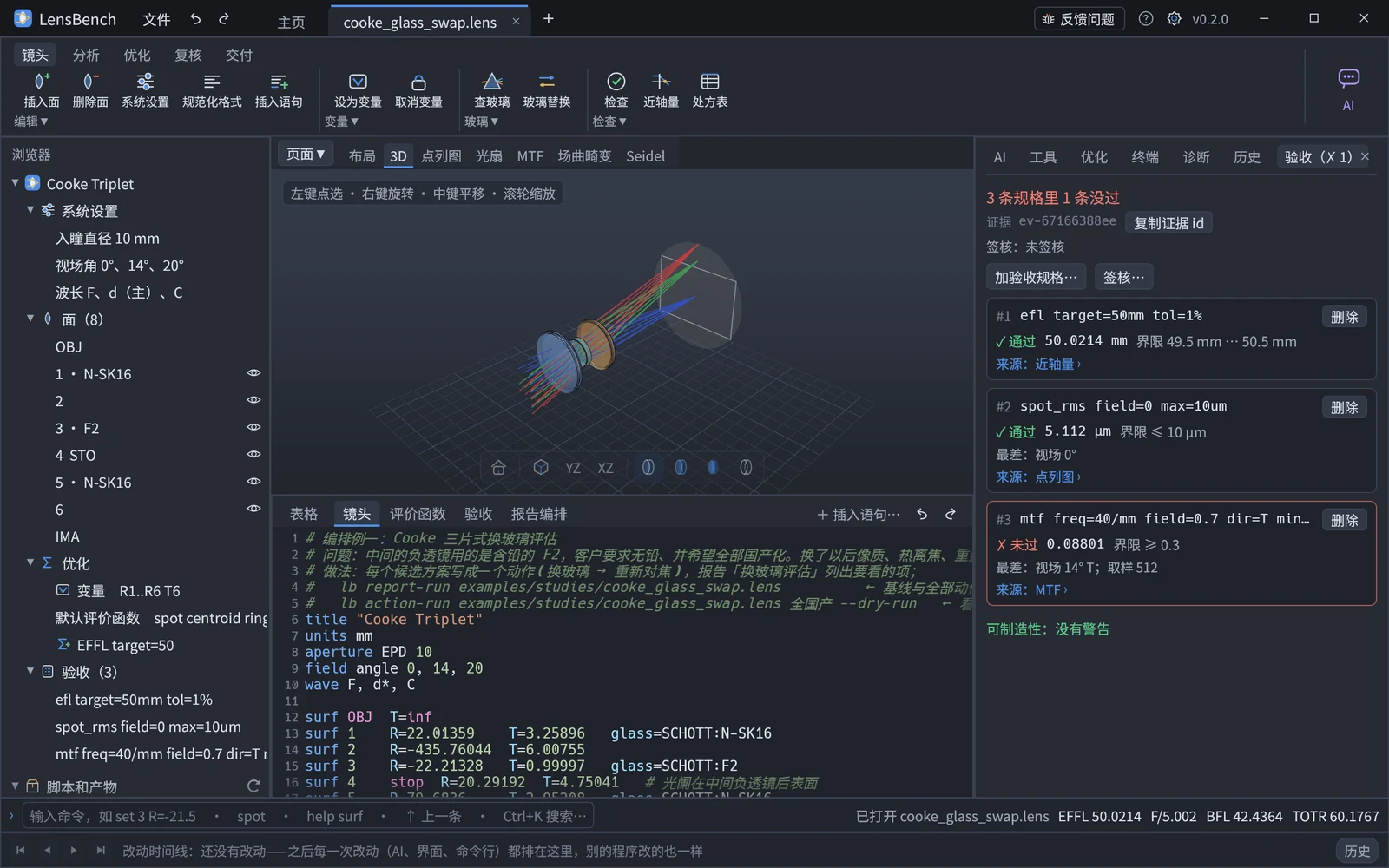
- Where the number comes from: select an entry and below the table is written its source analysis and sampling (the specification sampling is the default sampling of the corresponding command, for example spot RMS comes from "spot diagram, 6 rings, chief-ray reference, polychromatic" =
lb spot), the corresponding Zemax operand and the evidence id. Click the "Source" cell or double-click the row and the analysis view switches to the analysis page that computes it (that page samples according to theviewoptions, so the numbers may differ slightly from the acceptance). - Evidence id: one per acceptance table, the same as what you get from running
lb verifyin the terminal, and already registered in the session (lb evidence <id>in the terminal finds it); "Copy evidence id" puts it on the clipboard for citing in a report. - Multi-configuration designs: grouped by configuration (
spec … config=alljudges once on each configuration,config=konly on configuration k, and omitted = the current configuration); each group has a header row giving that configuration's conclusion and its evidence id ("Copy" puts it on the clipboard), a line at the top counts judgments (how many specs, how many configurations, how many judgments in total), and the evidence at the top is the overall one; they are the same as the per-configuration evidence ids listed bylb verify. - Manufacturability: below the table are listed mounting violations (interpenetration, negative edge thickness) and reminders of lens edge thickness below 0.5 mm (listed even with no spec); click an entry to select the corresponding surface in the table, layout and text. These are reminders only, do not count as failures, and do not affect
lb verify --strict.
Linked selection
Clicking a surface in the layout / 3D ⇄ the LDE table selects that row ⇄ that surface's surf line in the text is lightly highlighted (and scrolled into view); clicking a surface in the browser has the same effect. Conversely, selecting a row in the table, or moving the text cursor to a surf line, highlights the corresponding surface in the layout and 3D.
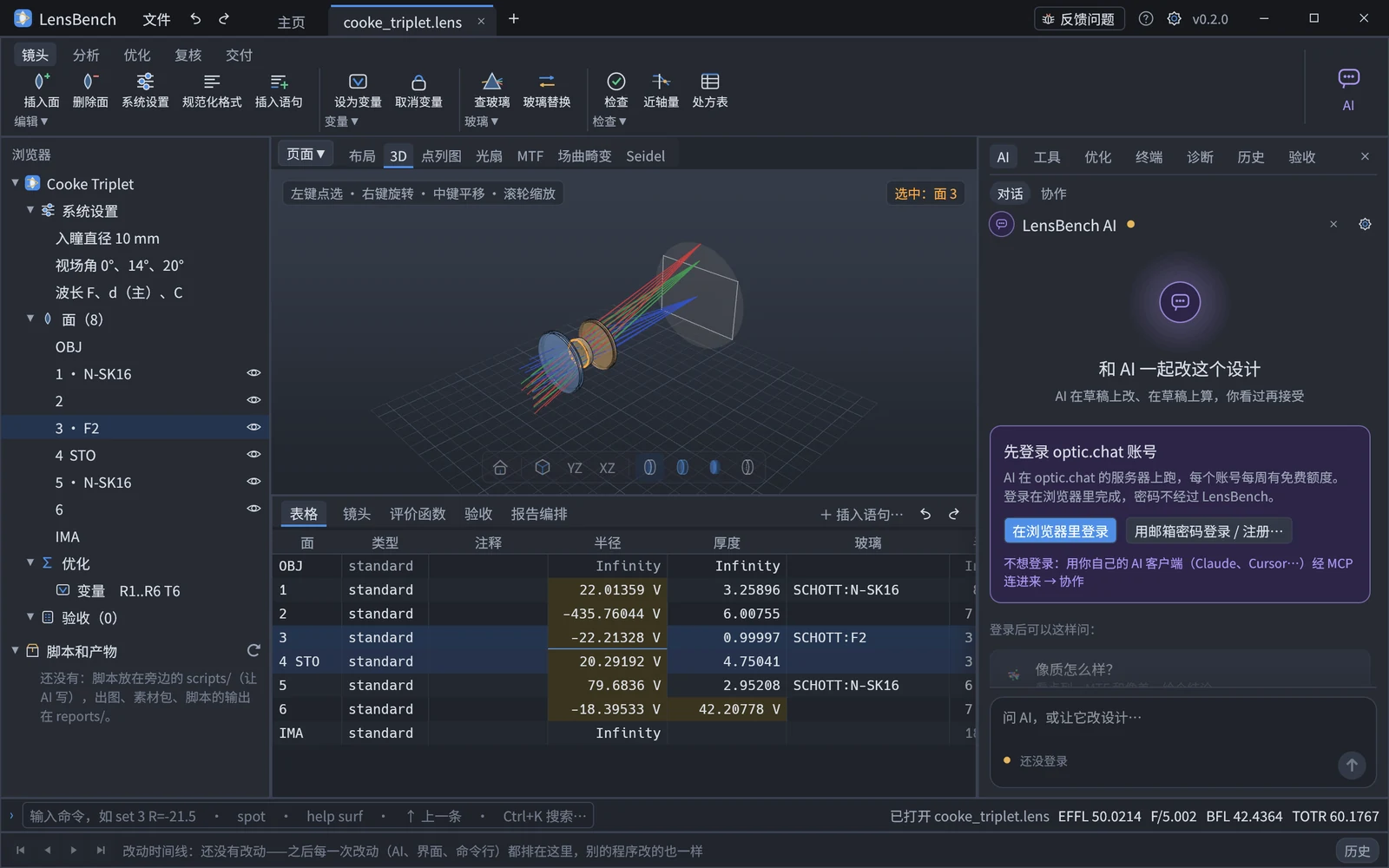
Cross-plot brushing: on the Ray fan page, rest the mouse on a point of a curve and the ray corresponding to that point (primary wavelength; for the tangential plot Px = 0, Py = P, for the sagittal plot Px = P, Py = 0) is drawn at the same time as a thick orange line in the layout and circled at its landing point in the spot-diagram subplot of the corresponding field, and the tooltip gives P and the aberration value; moving the mouse away clears it. It is not drawn on a page when the spot diagram uses the centroid as reference (view spot ref=centroid), the layout has fold on (compressing large gaps), or the page is marked "Stale".
Version history (the "历史" tab on the right, Ctrl+Shift+H)
Every time the AI (via MCP or the built-in chat) changes the design, or you change it with a command on the command line or in the interface, it is recorded in the change log next to the lens (.lensbench/; the lens must have been saved to disk first). The "History" tab on the right (opened by "History N" at the right end of the timeline, or by double-clicking an entry on the timeline) contains, from top to bottom:
- Title: how many changes there are in total and which version the current design is ("Current = #5"; when you reopen and unsaved changes are lost, "Current = before #3"). At the right end "○ Overlay this version": once on, the version selected or hovered over is overlaid on the current design — as amber lines on the 3D canvas, as gray dashed lines on the layout page when on other pages; sweeping over the list, the curves or the timeline shows how the design changed step by step
- Filter and search: filter by source (All / AI / Interface / Command line, with counts), and search descriptions, commands or
#number - Metric evolution curves: EFFL, F#, BFL and TOTR across versions, with a small triangle above the current version; hover to see the numbers of that version
- List: grouped by day, with a row above each day reading "Today", "Yesterday" or "10-16 Fri" with the count, and clicking it collapses / expands that day; one entry per row — number, command, description, time (within a few hours it reads "N minutes ago"), who made the change, and the change in key metrics; the current version is marked "Current". Changes that were undone or closed without saving are dimmed and marked "Not in design" (still in the log, so they can be recovered)
- Details of the selected entry: time, description, parameters, metrics before and after, a colored diff (added lines green, removed lines red), and three actions:
- "⟲ Back to before this change…" / "Back to after this change…": the whole text is replaced with that version, with the diff previewed first on the "Parameters" tab on the right and written only when you click "Apply"; it is undoable and is recorded in the log as a new entry. Double-clicking an entry in the list = go back to after that version (also previewed first)
- "Compare with current": that version and the current one are compared side by side for first-order quantities, prescription differences (only changed surfaces and parameters are listed) and image quality (polychromatic RMS of each field, tangential / sagittal MTF at the same frequency, maximum distortion), improvements in green and regressions in red — that is
lb compare(on the command line any two versions can be compared: the current one, the version on disk, a snapshot in the log, or another .lens file). If the design is changed again afterwards, the result is marked "Current changed again · Compare again"
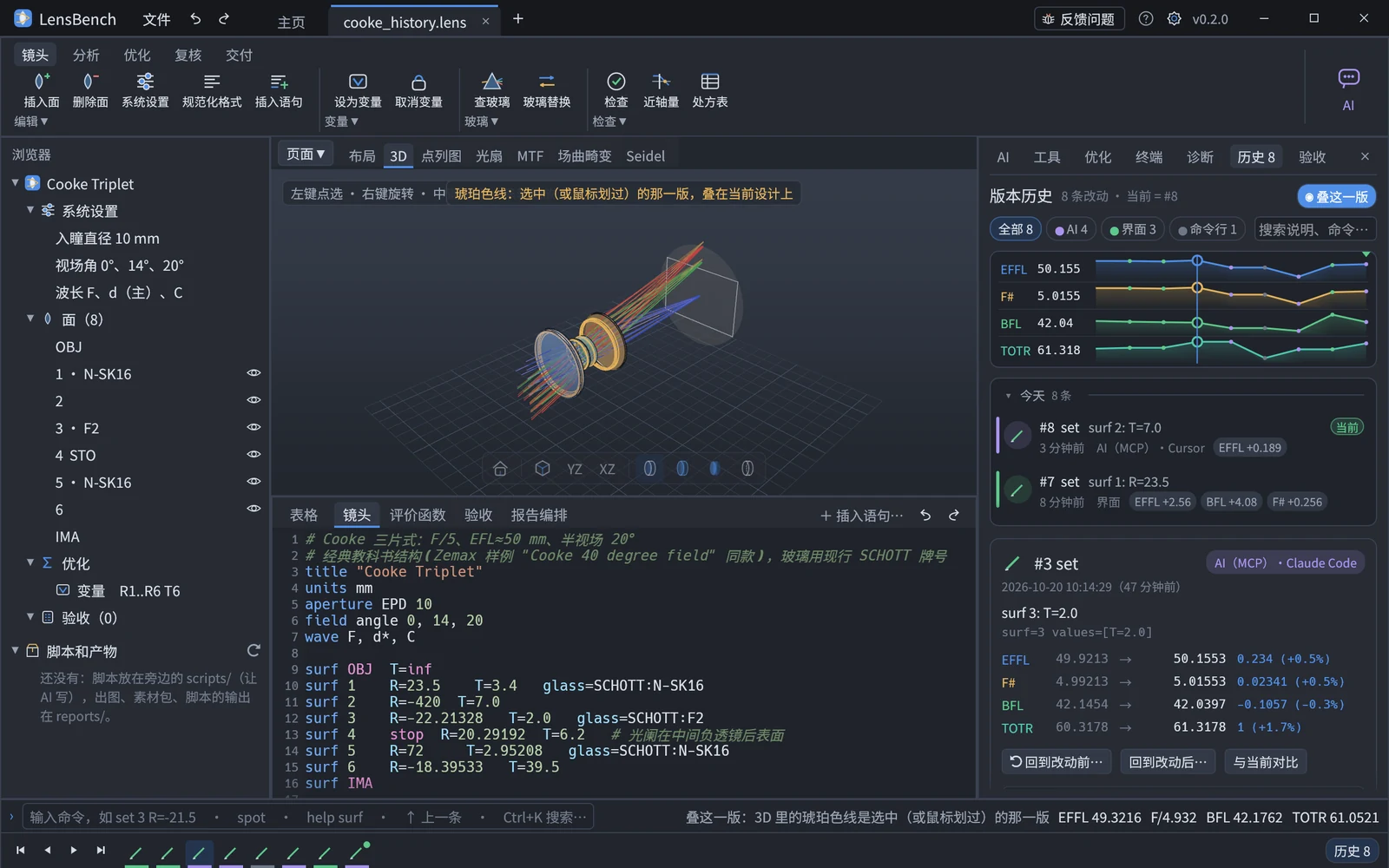
When the log file changes (for example the AI has just changed this lens from another program), the list follows within about 2 seconds, and a "Design was changed" card pops up at the lower right; click "View change" to look at that entry directly.
Sign-off (ribbon "Review" page › Sign-off; lb signoff): marks this version on disk as "reviewed", recording the reviewer (the system user name by default), time, note, model hash and acceptance conclusion. A signed-off design shows a permanent sign-off badge at the right of the command-line row: green "Signed off"; if only the name / comments / formatting changed afterwards it shows "Signed off (comments etc. changed)"; if the optics changed it shows an amber "Sign-off invalidated"; clicking the badge opens the "Acceptance" tab on the right. You cannot sign while there are unsaved changes (what is signed is the version on disk). Sign-off is for humans only: there is no such tool in MCP, and the AI can only look it up with signoff_status. An exported report pack states whether the corresponding version has been signed off.
Changes made through commands (the table, system settings, commands) are all recorded; typing in the text tabs is merged into one "manual edit" per pause, and undo, redo and applying an optimization result are also recorded (see "Syncing with disk").
Merit function and optimization (Ctrl+M)
The merit function is the op / let / default lines in the .lens, written directly in the "Merit function" tab at the bottom (Ctrl+M, or switching the ribbon to the "Optimize" page, opens it). The merit function is edited in this one place only.
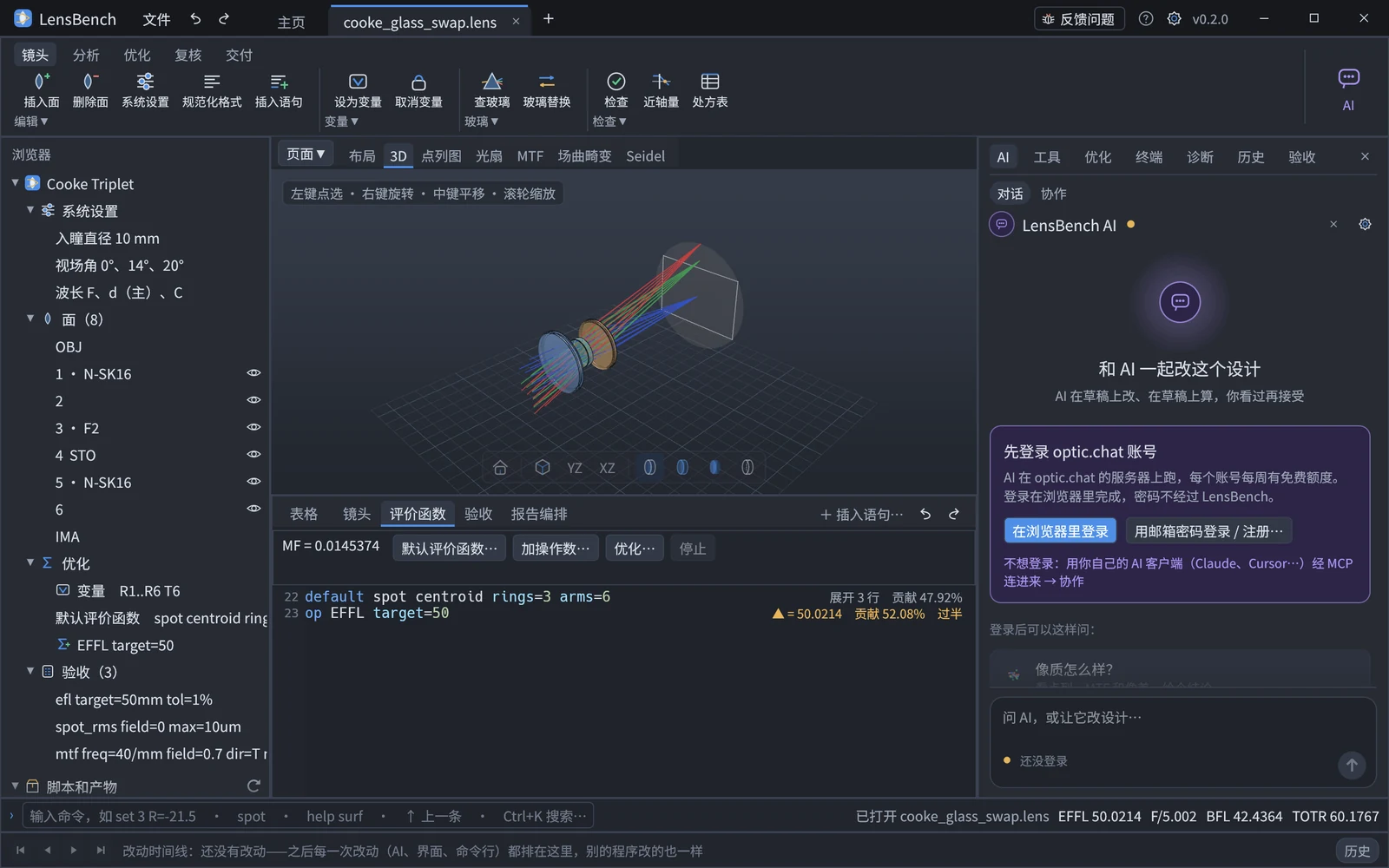
- The end of each row shows the current value and the percentage contribution; a row contributing more than half is highlighted and marked "▲ Over half". A
defaultrow shows how many rows it expands into and their total contribution; aletrow shows the value or the reason it failed. When the text has changed but the new result has not arrived, old values turn gray and the MF on the toolbar is marked "Stale". - The toolbar at the top of the tab: the merit function value MF, "Default merit function…" (filled in on the right-hand "Parameters" tab following the Zemax optimization wizard, with live preview, and written as a single
defaultline), "Add operand…", "Optimize…" and "Stop"; the line below shows progress, or why you cannot optimize right now (no merit function yet, no variables yet, errors in the text — in which case "Optimize…" is grayed out). - When there is no merit function yet, the tab shows a sentence of explanation: write an
opline (Ctrl+Space completes operands) or click "Default merit function…". - Add operand window (Ctrl+Shift+M; opened by "Add operand…" on the toolbar and in the ribbon, by op_add in the browser and command palette; the table's right-click "Add operand to this surface…" pre-fills the surface number): on the left a search box plus all operands arranged by category, findable by name, Chinese description or Zemax name (↑↓ to select, Enter to confirm); on the right the operand's description, unit and a parameter table generated from its spec — surface numbers and wavelengths are picked from this design, Hx / Hy can be picked from the fields, and leaving one empty means the default (shown in the box) — then choose the target (equal to / at least / at most) and the weight. Below is the assembled
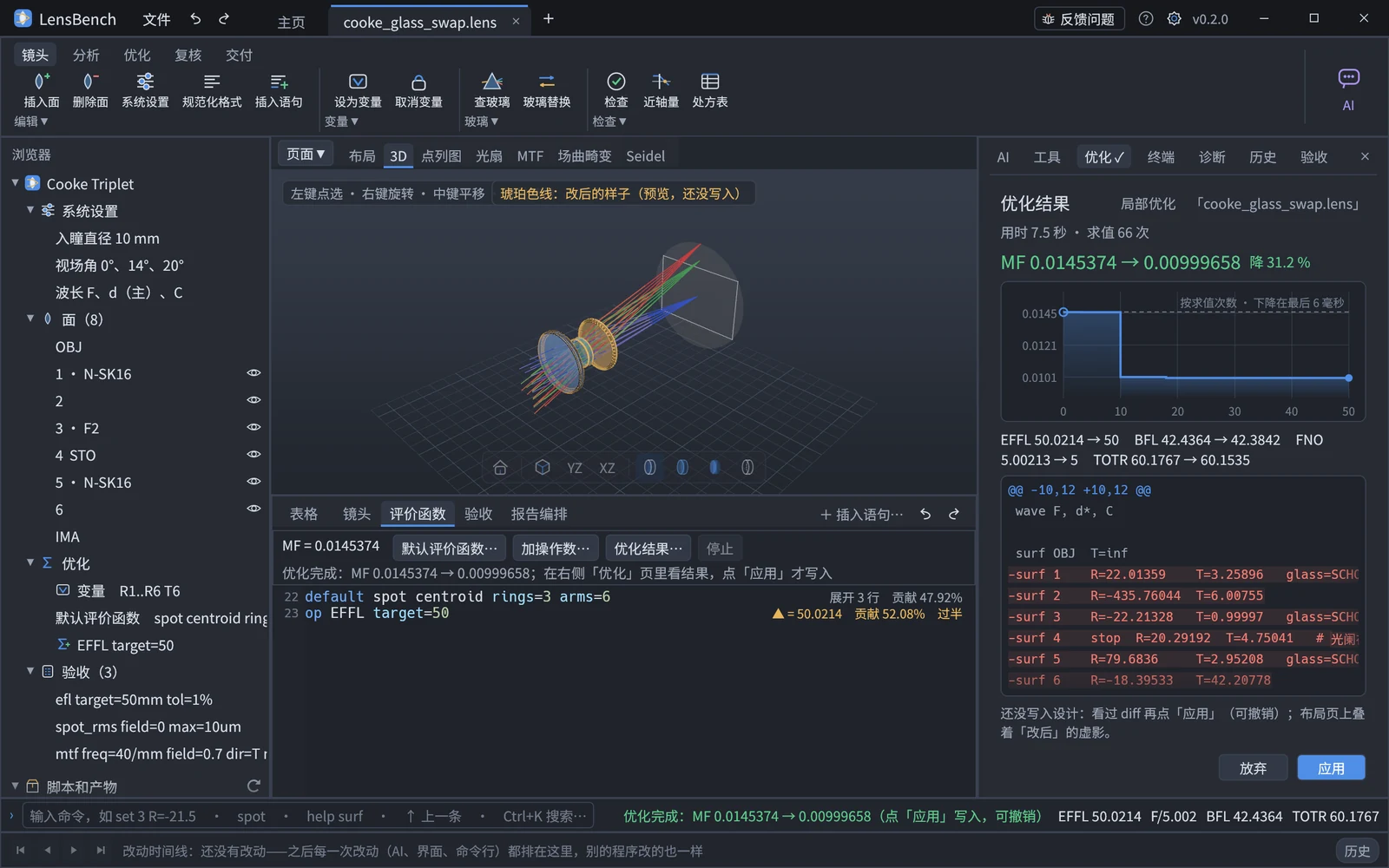
op …line and its current value (computed in the background after a pause of about 0.3 seconds, the same number as that line in the merit function; for at least / at most it is marked "✓ Met" or "✗ Violated"); when a parameter is wrong it says directly where (for example "RAID has no parameter 'Hz'") and "Add" is grayed out. "Add" = oneop_add(undoable); the window closes and the new line appears in the Merit function tab. - The "Optimize" tab (the third tab of the right sidebar): "Optimize…" on the toolbar, "Local optimization" (Ctrl+Shift+O) / "Global optimization" in the ribbon, and optimize in the command palette all switch to this tab (the two ribbon buttons preselect the corresponding algorithm). First choose the algorithm — local (damped least squares: starts from the current design, finds the nearest minimum and stops once converged; the maximum number of iterations can be set) or global (hammer: repeated random perturbation followed by local optimization, running for the full duration; quick options from 30 seconds to 4 hours, or a custom value up to 24 hours) — and click "Start". When optimization is not possible (no merit function, no variables) the tab states the reason, with "Add default merit function…" and "Make variable…" right beside it, which switch to the "Parameters" tab to fill in.
- While running, the tab shows the best MF so far, the starting MF, how much it has dropped, the elapsed time, and the MF-versus-time curve (log vertical axis; hovering reads the MF and evaluation count at that moment; after a long period with no further decrease it writes "No decrease for N seconds", at which point you may consider stopping). After a run in which preparation (starting worker processes, the first evaluation) took much longer than the optimization itself and all the descending points are crowded into the last small stretch of the time axis, the horizontal axis switches to evaluation count; with only a start and an end record, two points are drawn and "MF a → b" is written. "Stop" keeps the best result so far. Switching to another tab (or collapsing the right sidebar) leaves the optimization running in the background and the program usable as usual — a small badge at the right of the command-line row shows progress, and clicking it returns to the "Optimize" tab; while running, the tab reads "Optimizing".
- After the run, look at the result on the "Optimize" tab: MF before → after with the curve, the changes in EFFL/BFL/FNO/TOTR, the diff (which numbers changed), and a ghost of the "after" version overlaid on the layout page; only clicking "Apply" writes it (undoable, recorded in the change log), and "Discard" changes nothing. If the "Optimize" tab is not visible when the run finishes, it does not switch there by itself: the tab reads "Optimize ✓" and the small badge changes to "Optimization result pending". If you change the lens during optimization, that result is automatically voided. Only one optimization runs at a time.
- The MF of a multi-configuration design is labeled "MF (configuration k)" and is the value of the current configuration (see "Multi-configuration").
- The commands work as usual:
op-add/op-set/op-delete/let-set/default-merit(command line, command palette, browser right-click).
See Merit Function and Optimization for details.
Command palette (Ctrl+K)
Lists all commands available in the desktop app (the same registry as the CLI and MCP; a few commands, such as background jobs and doc generation, exist only on the command line or in MCP); type a keyword to filter. After selecting: a command with parameters goes to the "Parameters" tab on the right (live preview as you fill in, see "Parameters"), and one without parameters runs directly.
Terminal
The "Terminal" tab on the right uses the same parser as the command line at the bottom; you can type lb commands directly, omitting the file argument, and they act on the current session:
set 3 R=-25 --dry-run
insert 2 R=-200 T=1 glass=SCHOTT:F2
spot --rings 8
help solve
undo
clear
↑/↓ browse the history.
Scripts and artifacts (under the browser)
Scripts are mainly meant to be written by the AI: have it call the Lens interface (see Using LensBench from Python) to do sweeps, statistics and custom figures, and write the results to files; you look at the results here. The "Scripts and artifacts" section at the very bottom of the browser lists two directories next to the design file:
| Directory | Contents |
|---|---|
scripts/ | Scripts (.py) |
reports/ | Artifacts: figures produced by commands (plot etc. write here by default), report packs, script output (png / csv / md …) |
- Newest first; while expanded it refreshes by itself every 5 seconds (new files written by scripts or commands appear), and the ⟳ at the end of the row refreshes immediately. Hover to see the full path, size and how long ago it was modified.
- Click to view it in the "Artifacts" window: images (scaled to fit the window by default, switchable to original size), tables (csv / tsv), text, and scripts colored as Python. For files that cannot be viewed inside the app, such as svg and pdf, click "Open with default program". Right-click: open with default program, show in folder, copy path.
- Scripts cannot be run inside the app yet: run them in your own Python (
python scripts/xxx.py), or have the AI run them. This section is empty when the design has never been saved to disk.
Feedback (the "反馈问题" button in the title bar)
When you run into a problem, export a reproduction package (.lbfb, which is lb feedback): version, engine build number, operating system, your description, and recent commands and results (the first line of an error, diagnostic codes; for a crash, the exception and call stack). The design file is not included by default; it is included only if you tick "Attach design file (for reproduction only, deleted after the fix)"; ticking "Attach screenshot of the current window" also puts a picture of the main window into the package (a screenshot may reveal the design, so it is likewise off by default; on the command line it is --screenshot image). It does not go online: it is exported as a file, and who you send it to is up to you. The recipient replays it headlessly with lb feedback-replay x.lbfb and decides whether it reproduces (taking the design in the package and re-running, with the original parameters, the commands that failed or crashed on this version of the design).
Updates (? › Check for updates…)
About ten seconds after startup, the app automatically checks once for a new version (at most once a day; this can be turned off in Preferences, after which no update check runs at startup; there is also no automatic check when running from source). When there is a new version, an "Update" banner appears above the analysis view: Update… (view release notes, download, install), Later, Skip this version (automatic checks stop prompting for this version, while newer versions are still prompted; versions marked "Required update" do not have this button). If you are on the Home page, it is shown once you enter a design; before you click a button on the banner, it stays up even when you switch designs. When the automatic check fails (offline, server unreachable) or you are already up to date, you are not disturbed. Checking and downloading both run in the background, so you can keep typing and editing the design on a slow or dropped network. If you quit the program halfway through a download, the unfinished file is cleaned up at the next update check.
Help "?" › Check for updates… checks manually at any time (it can also be clicked on the Home page; update in the command palette and on the command line goes the same way): "already up to date" and a failed check (cannot connect, signature verification fails, …) both pop up an explanation; when there is a new version the update window opens directly, and skipped versions are shown as usual.
The update window: version, date, size and release notes. Only clicking Download downloads (with a progress bar; closing the window cancels), and after downloading the size and SHA-256 are verified; on a mismatch the file is deleted and not installed; if the download failed the button becomes Download again, with the reason beside it. After verification the button becomes Install: installing requires quitting the program — if there are unsaved designs they are listed and you are asked first (Discard changes and install / Cancel; to keep the changes, cancel, save, and then install), and choosing "Cancel" means no update and the program stays open as usual (the installer stays on this machine, and ? › Check for updates… can install it later); only when there are no unsaved designs, or you chose to discard, is the installer run and the program quit, and it reopens automatically when the install is done. If the installer fails to start (administrator permission not granted, pre-launch verification failed) a popup explains and the program stays open as usual. When running from source it only reports and does not download (update source with git pull). Checking for updates sends only a GET request to optic.chat, carrying the software version number and no design, usage data or machine information. The update channel is chosen in Preferences; going from beta back to stable does not downgrade — the installed beta stays in use until a stable version newer than it is released. The same thing on the command line is lb update (--download downloads and verifies, --channel beta selects the beta channel).
Documentation (F1)
Browse the documentation inside the app (install, five-minute quickstart, GUI and optimization guides, plotting, report pack, DSL / command / diagnostic code / operand reference, Zemax mapping, validation); the DSL reference opens by default, and links between documents are clickable.