
Beta Guide
Thank you for trying the beta of the LensBench desktop app. This page covers how to get it running, what to look at first, what is not done yet, and how to tell us when you hit a problem. Going through the flow below takes about 15 minutes.
Getting it running
System requirements: Windows 10 / 11 (64-bit).
- Get the portable build
LensBench-<version>-win64.zip. No installation is needed. - Unzip it first to a directory where you have write permission (for example, unzip to
D:\to getD:\LensBench\). Do not double-click to run it from inside the archive: the program needs the other files in the same directory. - Double-click
LensBench\lensbench-desktop.exefrom the unzipped folder. - The beta is not code-signed yet, so on the first run Windows may show "Windows protected your PC": click "More info" → "Run anyway", and it won't ask again. Some antivirus programs may raise a false alarm; add it to the trusted list. If you are unsure, ask whoever gave you the test build.
- Sign in: the first launch stops at the sign-in page; sign in with an optic.chat account (sign in in the browser; if you have no account, register one, free of charge). Every edition requires sign-in, and after signing in you return to where you were. From the first sign-in on a new device you get a 7-day full-featured trial (once per device and once per account); when the trial ends, you can keep using the free edition. For when the software goes online and what it sends, see Privacy and network access.
If a "找不到随包的桥……安装不完整" ("cannot find the bundled bridge … incomplete installation") message appears, the unzip was incomplete: delete the unzipped directory and unzip it fully again.
This test build expires 90 days after it was built; after that it stops at the sign-in page with a prompt to download a new version. Replace it with a new test build before then (see "Not done yet" below). For what changed in this version, see the release notes.
What to look at first
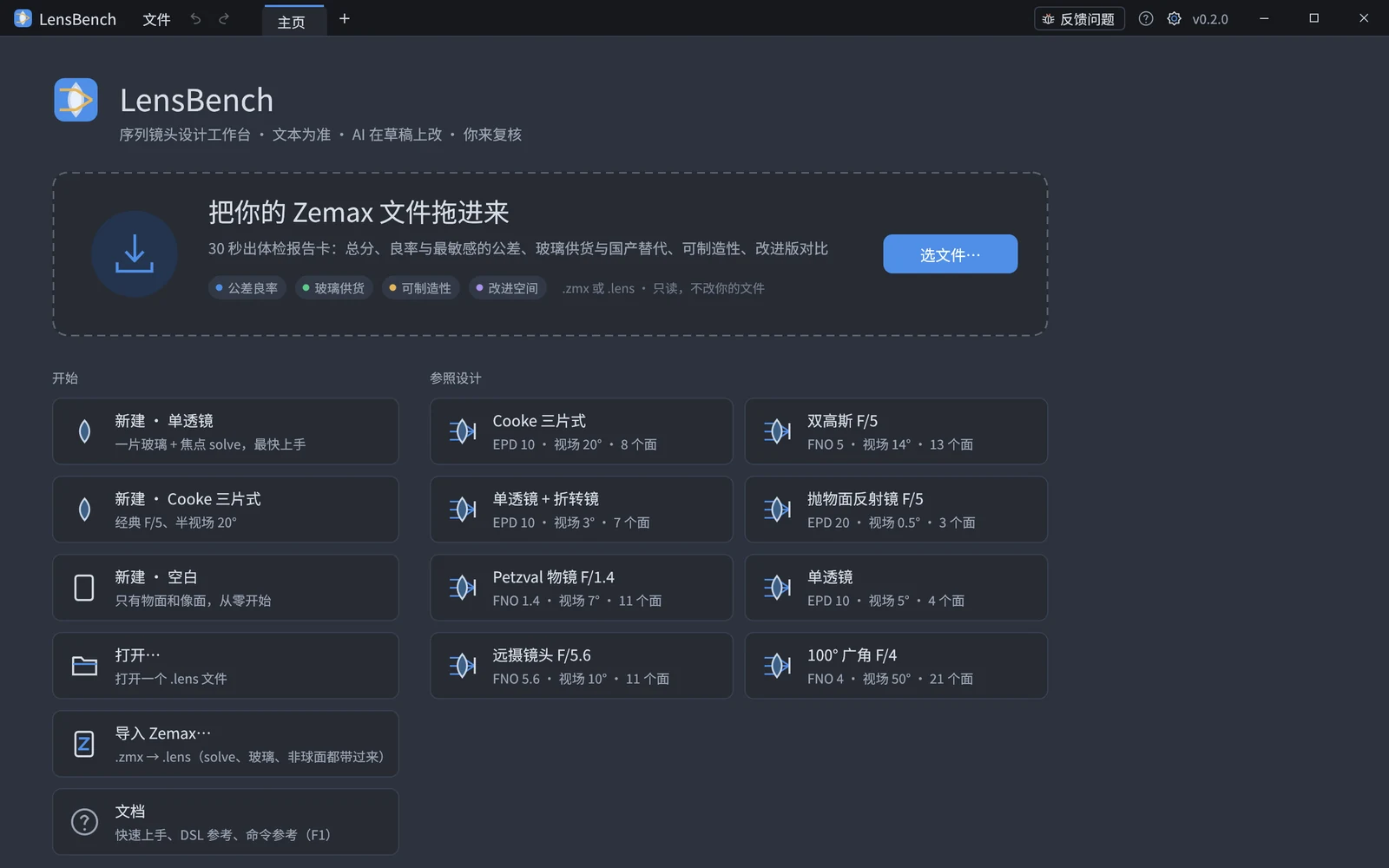
Open a reference design: on the home page, under "参照设计" (Reference designs), click "Cooke 三片式" (Cooke triplet). What opens is a copy; the one shipped with the software is never changed. When saving, you choose the location yourself (default: "Documents\LensBench").
Look at 3D: right-drag to rotate, middle-drag to pan, scroll to zoom; double-click a lens to fly to it, and double-click empty space to fly back. Left-click a surface to select it, and the browser on the left follows the selection.
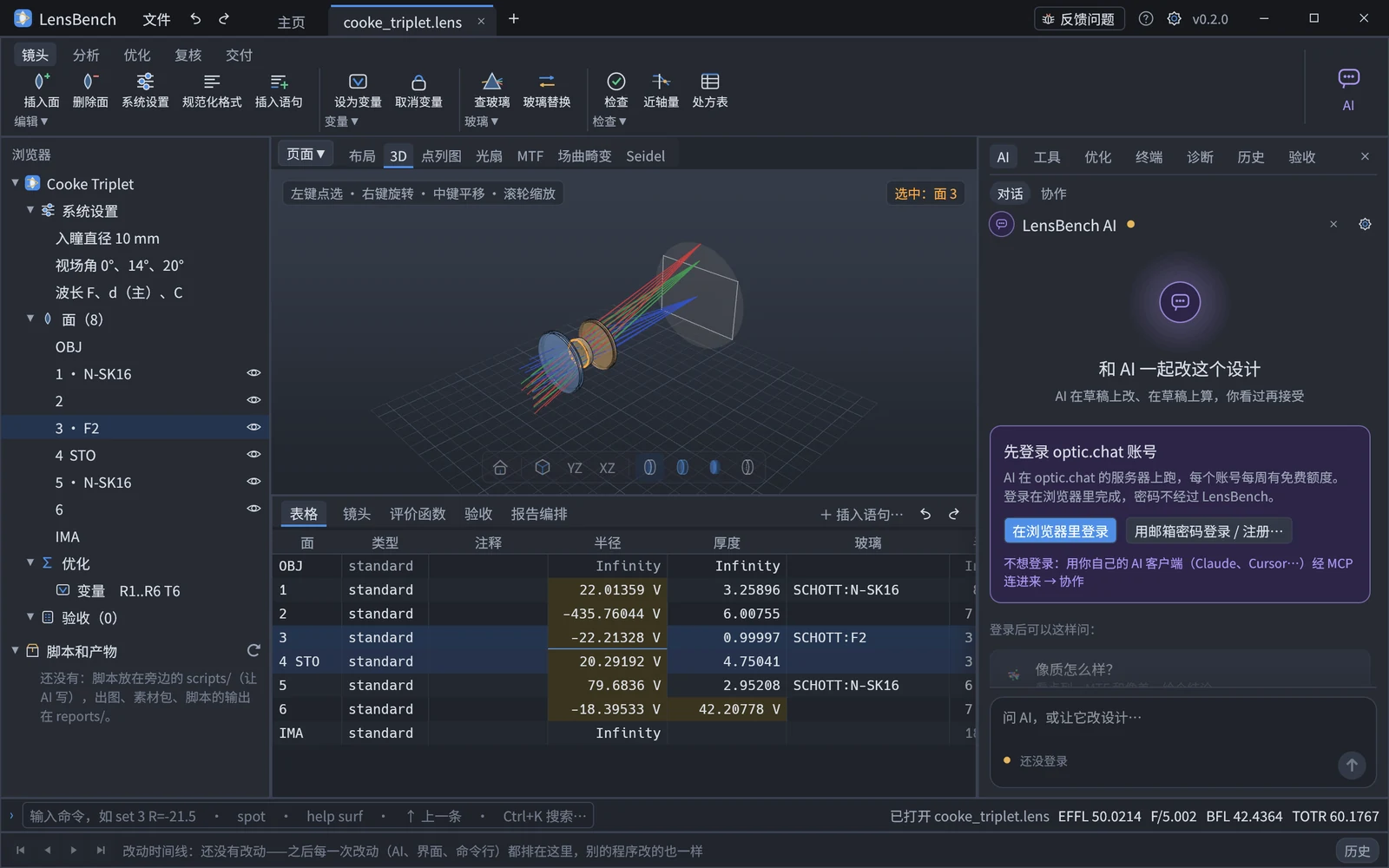
Change a number: in the "表格" (Table) tab at the bottom, change the radius or thickness of a surface; or edit the text directly in the "镜头" (Lens) tab; or type
set 3 R=-21.5in the command line at the very bottom and press Enter. EFFL, F# and BFL in the status bar change accordingly, a new change appears on the timeline at the bottom, and in the "历史" (History) page on the right you can go through the changes one by one and return to any version.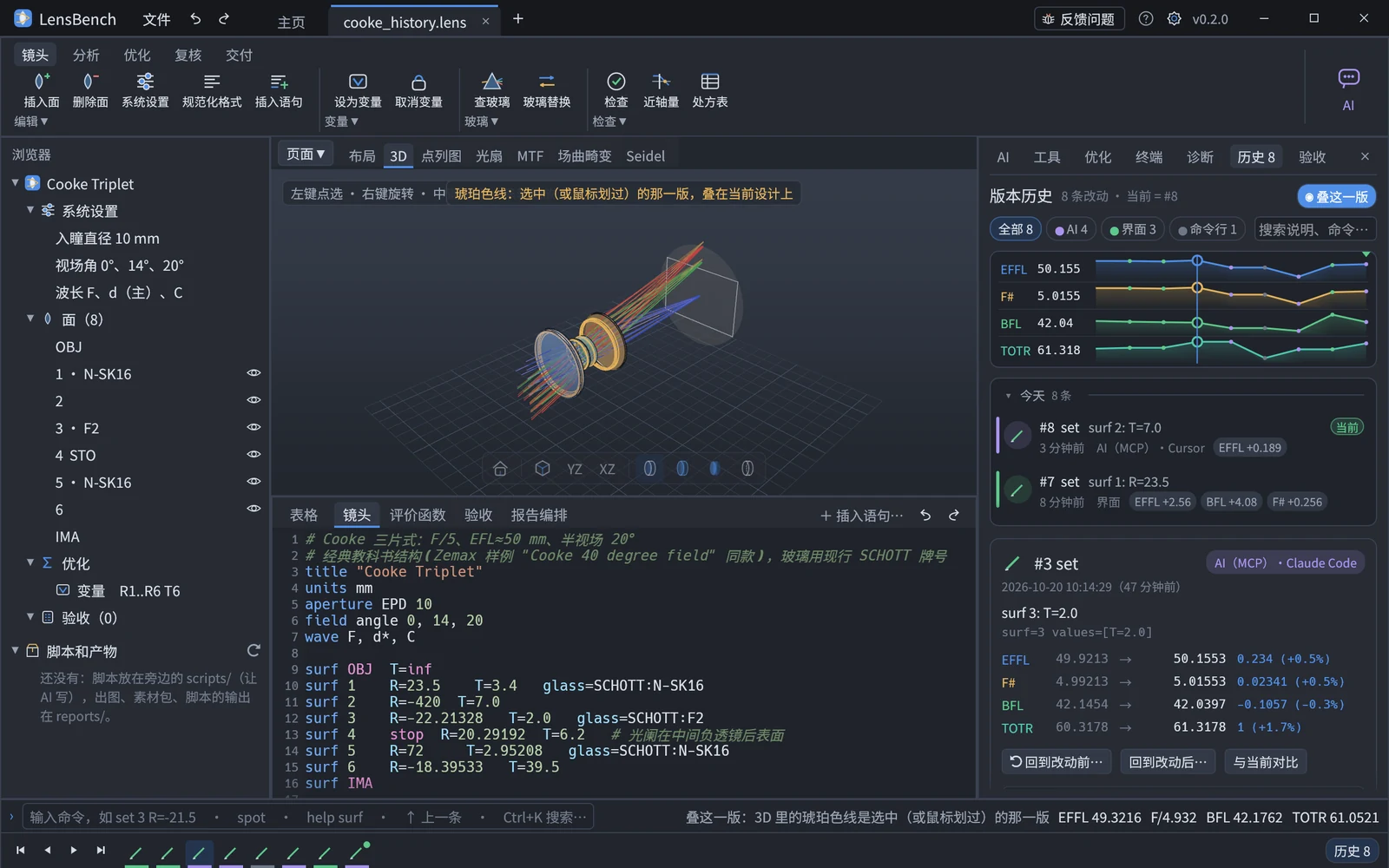
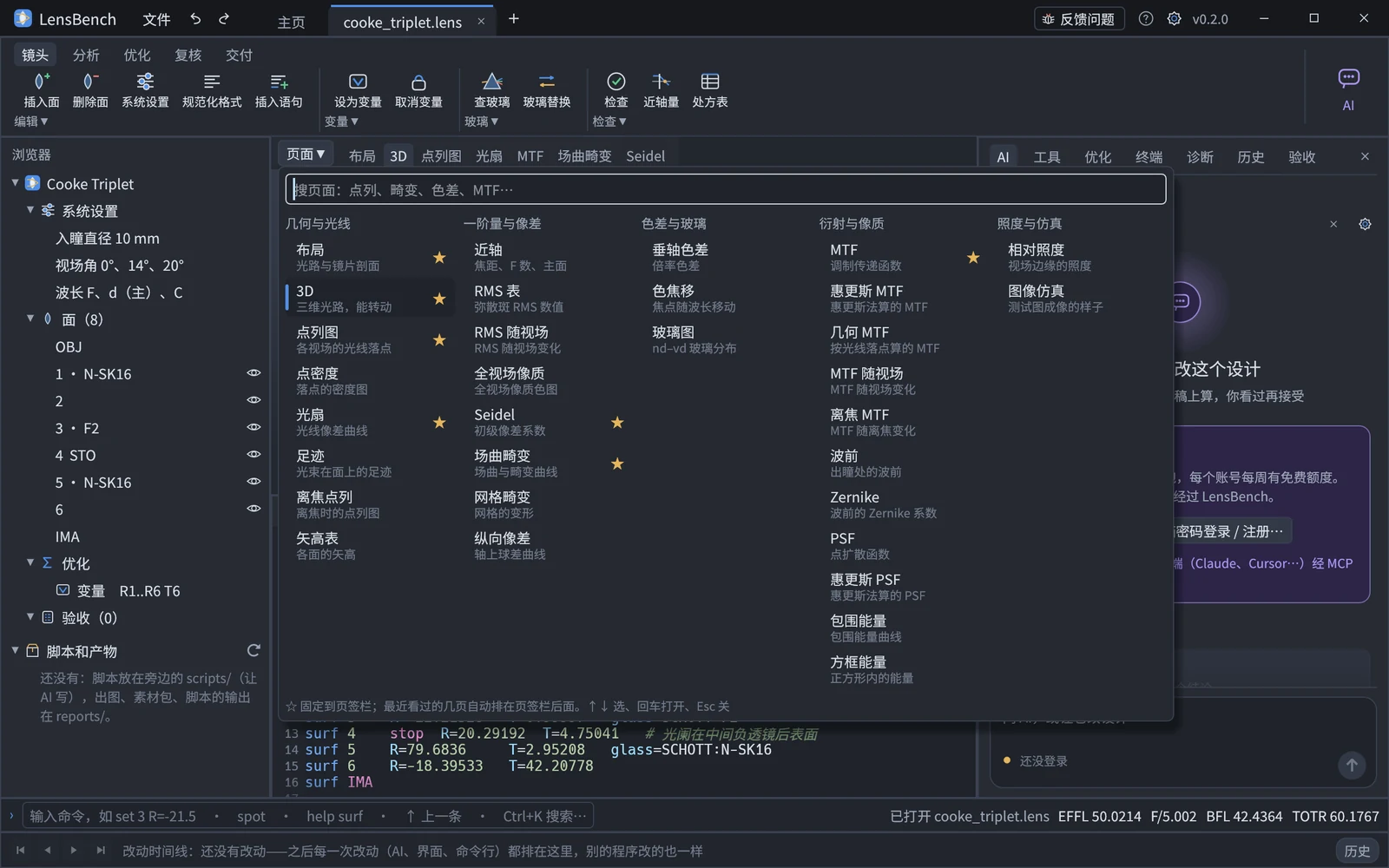
Look at the analysis pages: on the tab bar, click "点列图" (Spot diagram), "MTF" and "场曲畸变" (Field curvature and distortion). More pages (30 in all) are in "页面 ▼" (Pages ▼), grouped into five categories and searchable (Ctrl+P). On the navigation bar below a plot you can switch to the "数字页" (Numbers page) to see the table for the same data.
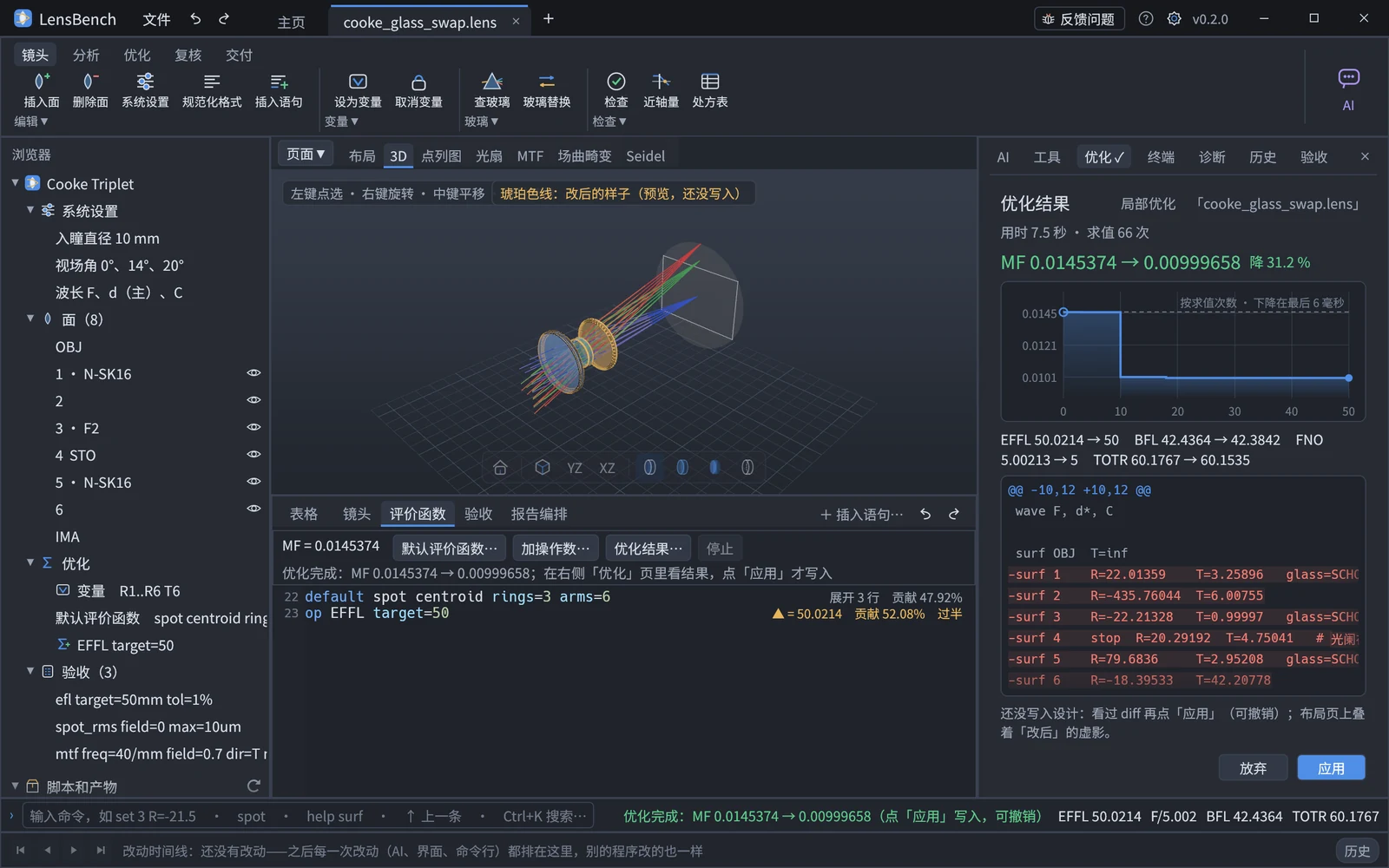
Merit function and optimization: switch to the "评价函数" (Merit function) tab at the bottom, click "默认评价函数…" (Default merit function…) on the toolbar, look at the preview in the "参数" (Parameters) page on the right, then click "应用" (Apply); then click "优化…" (Optimize…) on the same row and click "开始" (Start) in the "优化" (Optimization) page in the right sidebar. You can also just say "build a merit function and optimize" in the AI page on the right. Optimization runs in the background; when it finishes, it first shows you a before/after diff, and the result is written into the design only after you click "应用" (Apply). The variables are already set up in the Cooke triplet (R1..R6, T6).
Export a figure: on the navigation bar below a figure in an analysis page, click the "导出出版图" (Export publication figure) button (hover over the button for an explanation), or press Ctrl+E, and save as PNG / SVG / PDF. Exported figures carry a frame and the evidence id, and the right end of the title line is stamped with the tier (during the trial it reads "试用版 · 仅限评估", i.e. "Trial edition, evaluation only").
Report a problem: "反馈问题" (Report a problem) at the upper right of the top bar; see "When you hit a problem" below.
Anything that feels awkward, any place where you can't find the next step, or any prompt you can't understand is worth writing down. For the manual, see the GUI guide; for what it can and cannot do, see Capabilities and scope.
Not done yet
- No installer: the portable build does not create Start menu entries or associate
.lens(double-clicking a.lenswill not open it with the program; use "打开…" (Open…) in the program). - No code signing: so the first run is stopped once by SmartScreen (see above).
- New versions: for the portable build, ask whoever gave you the test build for the new version, and unzip a fresh copy.
- Scripts: "脚本和产物" (Scripts and artifacts) under the browser can list and show the files in
scripts/andreports/next to the lens, but cannot yet run scripts inside the program. - AI: the built-in chat in the "AI" page on the right uses your signed-in optic.chat account, and the quota is counted by calendar week (it resets every Monday at 00:00); below the AI page's input box it shows how much has been used this week and roughly how many more questions you can ask. You can also connect your own AI client (Claude, Cursor, etc.) through MCP under "协作" (Collaboration) in the AI page, which doesn't spend optic.chat AI quota (LensBench itself still requires sign-in).
- Optimization speed: in the beta, optimization uses a single process, so optimizations with many variables are somewhat slower than they will be in the official release.
When you hit a problem
- Click "反馈问题" in the top bar and write what you did, what you expected and what actually happened. You can tick "附设计文件" (Attach the design file) and attach a screenshot; neither is included by default.
- Click "导出" (Export) to produce an
.lbfbfile (the window tells you where it is saved, with "打开所在文件夹" (Open containing folder)). It contains the version number, the engine build number, and recent commands and errors. - The feedback package is not sent automatically (all the software sends automatically is anonymous usage statistics, which contain no account or design content; see Privacy and network access). Send this
.lbfbfile to whoever gave you the test build; screenshots and screen recordings are also welcome.
If the program won't open or you can't export a feedback package, just tell us your Windows version, the directory you unzipped to, and the exact text of any prompt that appeared (a screenshot is best). The version number and engine build number can also be seen in Help "?" › 关于 (About).